
Version History
Every AI change is saved automatically. Browse, preview, and restore any previous version of your project.
How history works
Anima creates a new version every time the AI makes changes to your project. No manual saving needed.
Versions form a complete timeline of your project. You can browse, preview, and restore any point in that history.
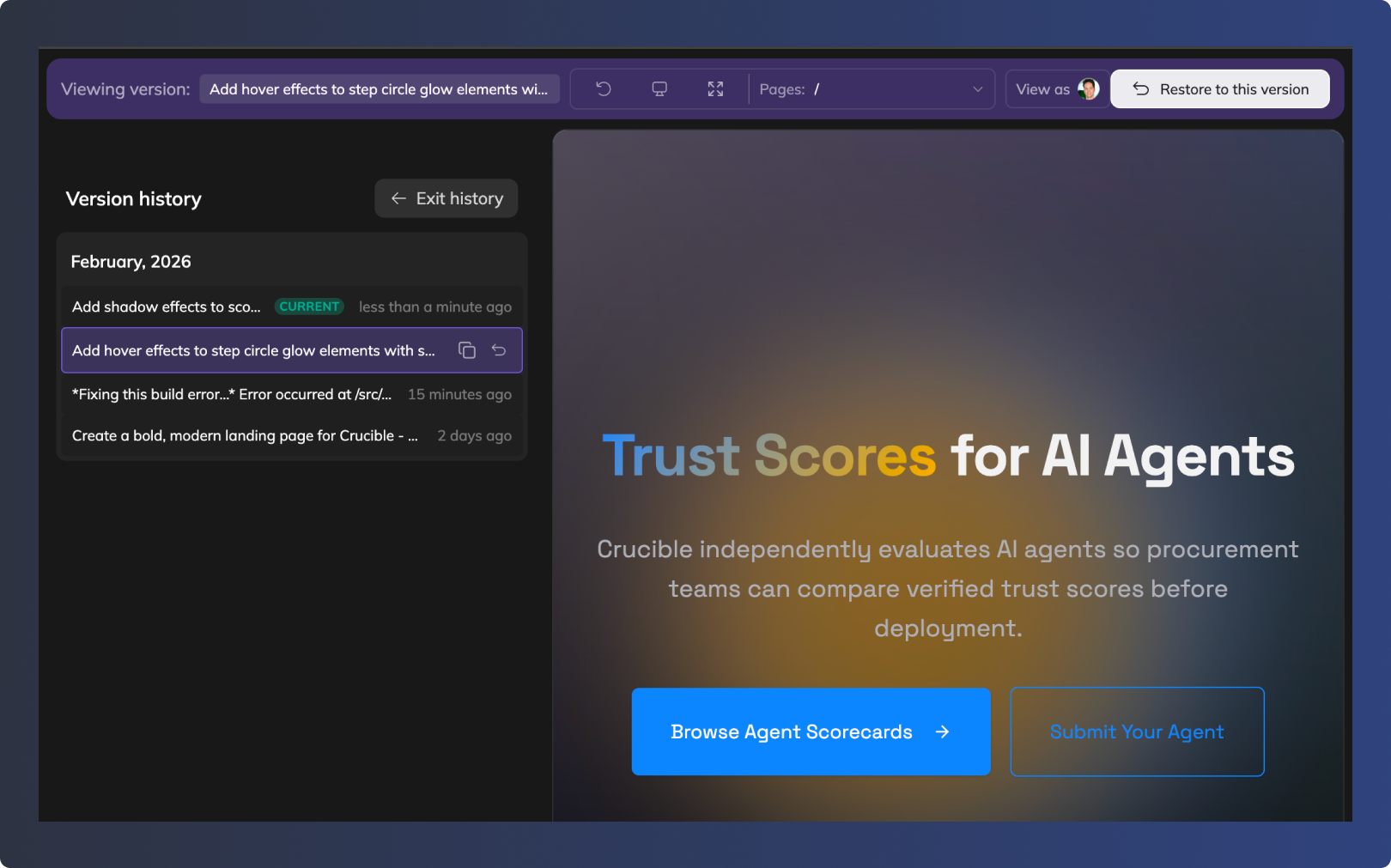
Viewing history
- Click the History button above the chat input
- Browse the list of version cards, grouped by month
The current version has a green Current badge.
Previewing a version
Click any version card to preview it. While previewing:
- A banner appears at the top showing "Viewing version:" followed by the version name
- The editor and preview show that version's state
Click Exit history to return to the current version.
Restoring a version
- Click a version card to preview it
- Click Restore to this version in the top bar
- A confirmation dialog shows the version you're about to restore
- Click Restore this version to confirm
Your current state is saved automatically before restoring. The restored version appears at the top of the list marked with "(Restored)". The original version stays in history, so nothing is lost.
Duplicating from a version
Instead of restoring, you can create a separate copy of your playground from any version point.
- Click Restore on a version card to open the confirmation dialog
- Click Duplicate playground from here instead of restoring
This creates a new playground starting from that version, leaving your current project unchanged.
Related
Updated 8 months ago