
Add Figma Design System
Bring your Figma design system into Anima so your whole team can vibe code on top of it
Figma to Design System
Bring your Figma design system into Anima so your whole team can vibe code on top of it. One teammate imports the design system once, and everyone on the team can then prompt new UIs, screens, and flows that stay on-brand — without re-exporting, re-uploading, or setting anything up again.
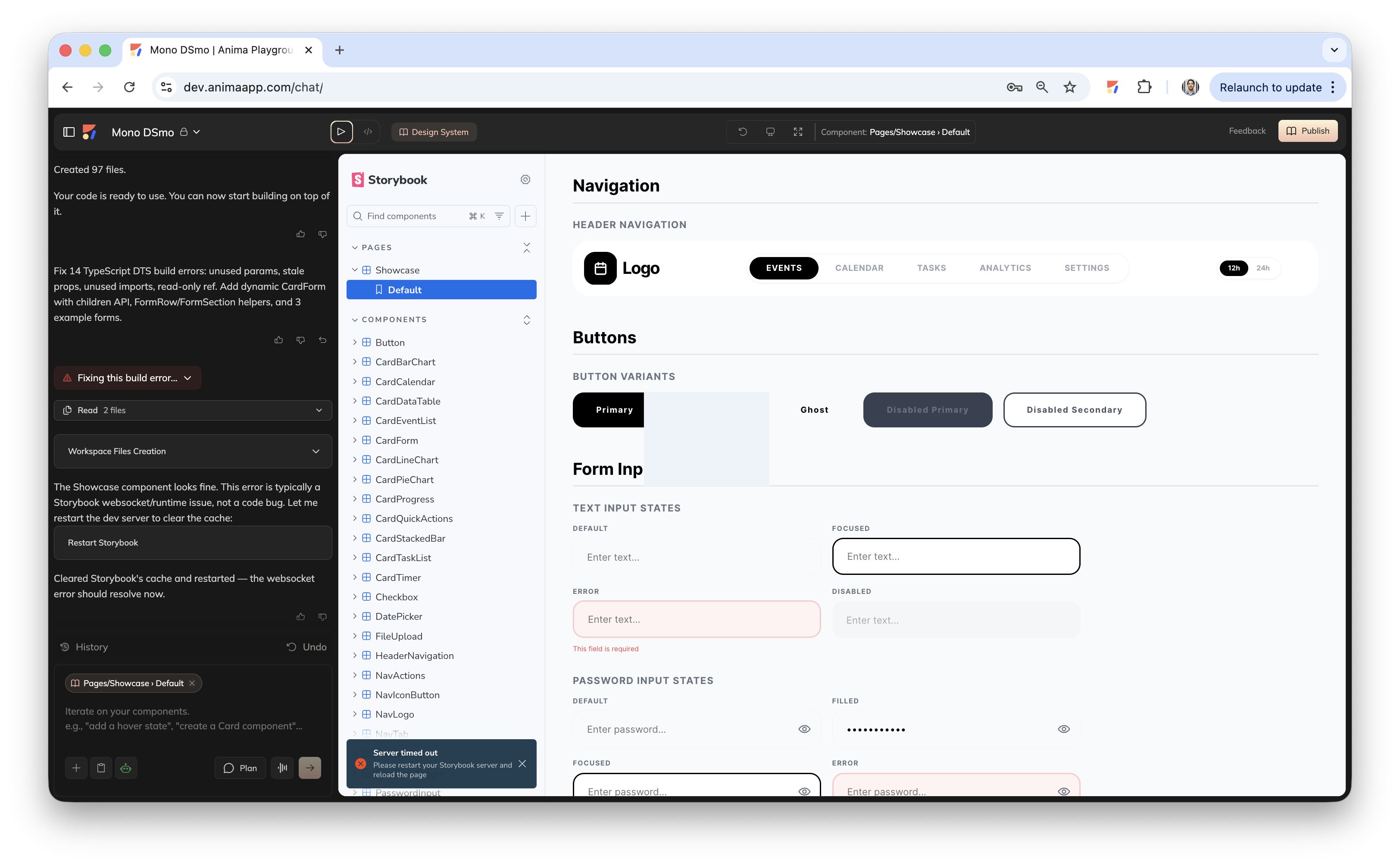
Under the hood, the feature imports your selected Figma components into a new Anima Playground as a live Storybook site, preserving every variant, state, prop, and control. That Playground becomes your team's shared source of truth when vibe coding.
Before you begin
Make sure you have:
- An Anima account on the Starter plan or higher.
- The Anima Figma plugin installed from the Figma Community.
- A Figma file containing the components you want to import, with Figma Variables, styles, and component properties defined. Most Figma variable types are supported.
Import your design system
The feature is available in both Design Mode and Dev Mode of the Anima plugin.
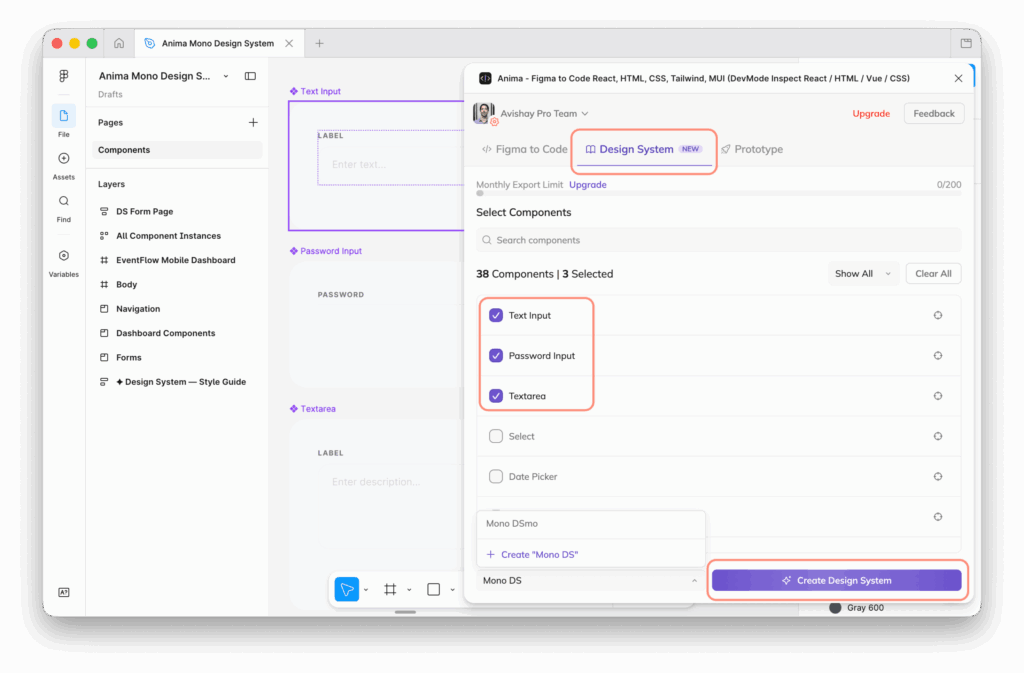
- Open your Figma file and launch the Anima plugin.
- Open the Design System tab.
- Select the components you want to include.
- Click to create the design system. Processing time scales with the number of components.
- When generation completes, Anima opens a new Playground containing your Storybook site.
What's generated
-
A Storybook site inside a new Playground, with one entry per selected component.
-
Every component retains its variants, states, props, and controls from Figma.
-
Components are rendered from your Figma Variables and styles, so tokens stay aligned with the source file.
Vibe code with your design system
Once the Playground is ready, just publish using the "Publish" button in the top right corner it and it's available to your whole team as a shared design system. Anyone can:
-
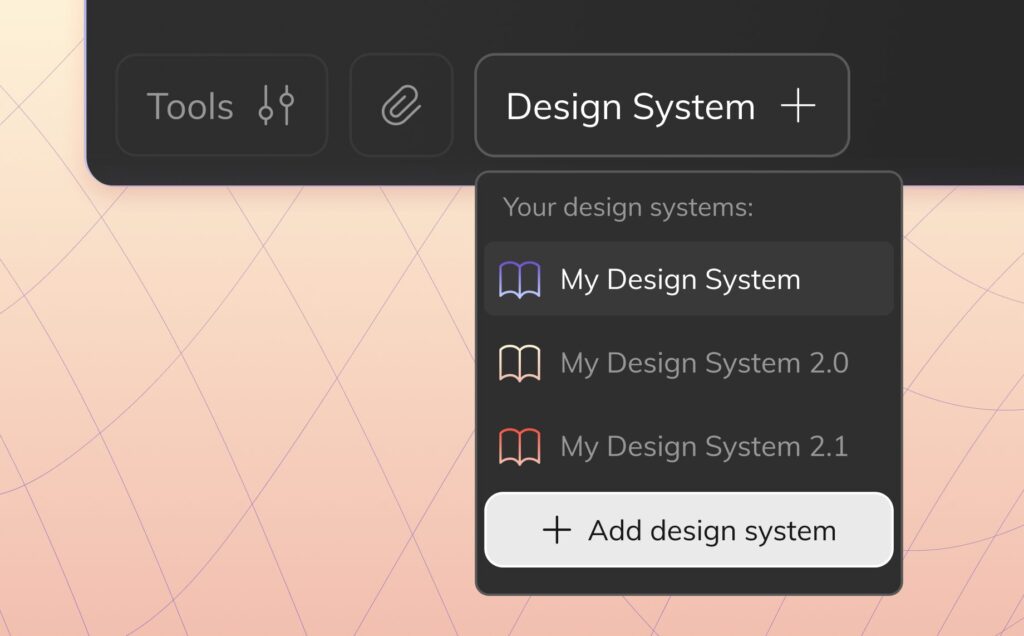
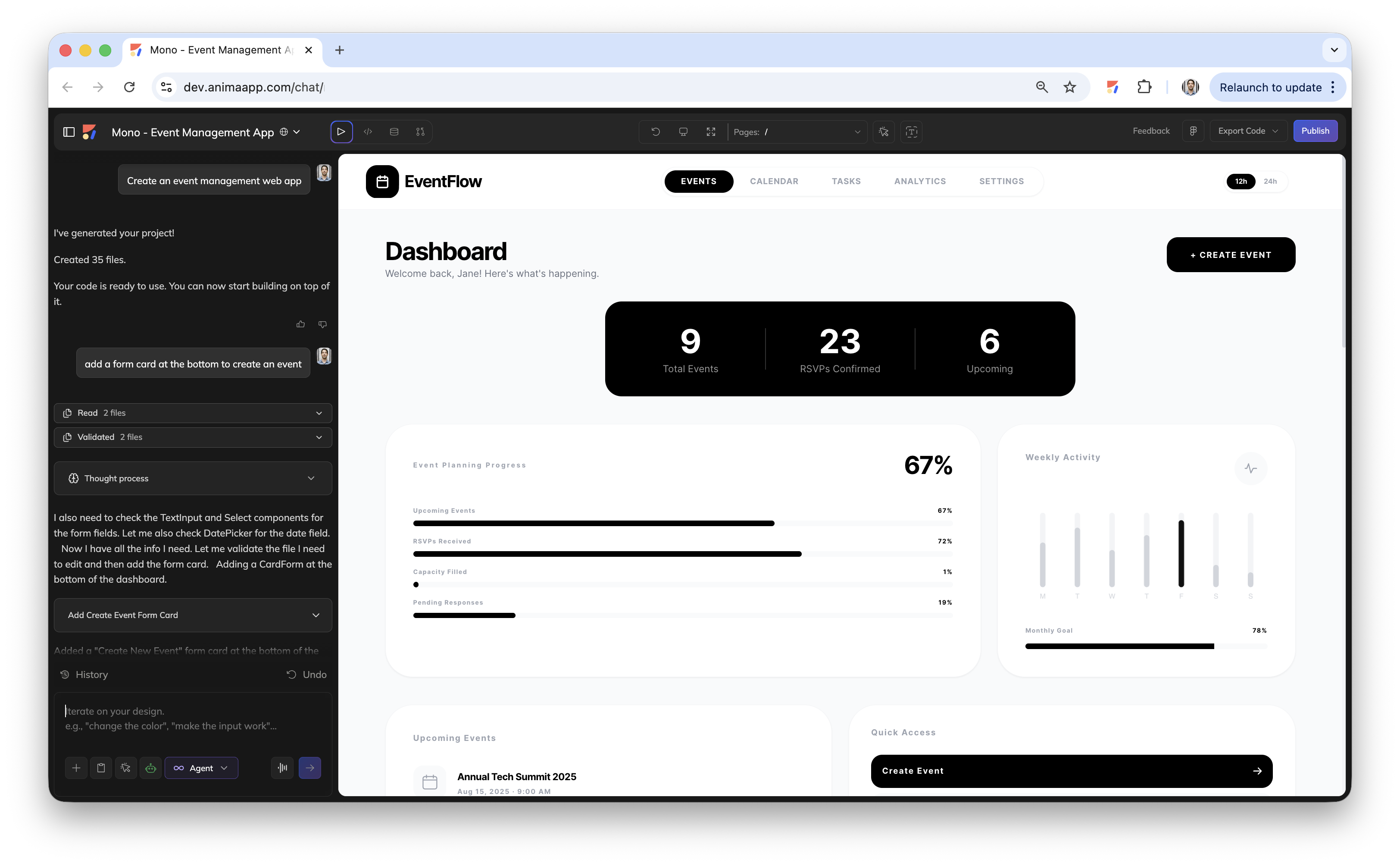
Prompt with it. When starting a new project in Anima, select the design system so the agent generates screens and flows that follow its visual language.
-
Use it across the team. Playgrounds are public by default, so every teammate can pick your imported design system when starting a new project — one import unlocks it for everyone. Switch a Playground to private from its settings if you need to restrict access.
-
Hand off to a coding agent. Connect through the Anima MCP to Claude Code, Cursor, GitHub Copilot, or OpenClaw, or download the code directly.
-
Round-trip to Figma. Copy components back to Figma for further design work.
Update your design system
To add to or iterate on an existing design system:
- Reopen the Anima plugin in your Figma file.
- Open the Design System tab and choose the option to update an existing design system.
- Select the design system you want to update and the new or changed components.
- Run the generation. The newly selected components are added to the previously generated Playground, and the update is picked up automatically by everyone on the team the next time they reference it.
Usage and limits
Design system generations count against your plan's monthly code generations entitlement. Check your plan for the exact allowance.
FAQ
Can my whole team use a design system I imported?
Yes. Playgrounds are public by default, so every teammate can select your imported design system when starting a new project in Anima. You only need to import it once.
Can I add components to a design system later?
Yes. From the Design System tab, select an existing design system and choose the components you want to add. They're merged into the existing Playground, and your team will see the updated components next time they use it.
How do I connect my design system to a coding agent?
Use the Anima MCP to connect Claude Code, Cursor, GitHub Copilot, or OpenClaw. The agent can then generate code that follows your design system.
Is the generated design system public?
Yes, Playgrounds are public by default — this is what lets the rest of your team reach them. You can switch any Playground to private from its settings.
Updated 6 months ago