
Fonts
Manage fonts in your project. Upload custom fonts or let Anima handle substitution when cloning websites.
Upload custom fonts
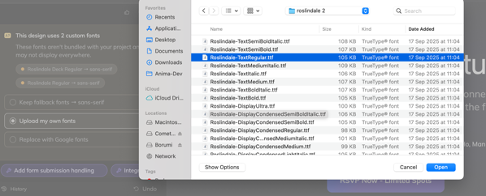
Drag and drop a font file directly into the chat to add it to your project. You can also click the paperclip icon in the input toolbar to browse for files.
Supported formats: .ttf, .otf, .woff, .woff2
Font detection when cloning websites
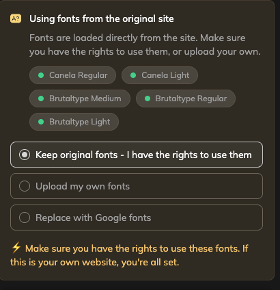
When you clone a website, Anima scans the page and detects every font used in the original design. Results appear as an inline alert in the chat, with each font shown alongside a status indicator.
Custom fonts detected
Some fonts require a license and can't be loaded automatically. These appear with a yellow dot in the alert.
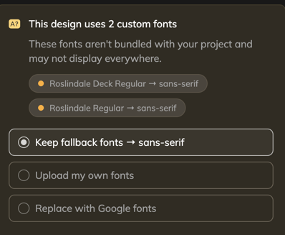
Anima falls back to a sans-serif substitute, so your project still renders correctly. You have three options:
- Keep the fallback. Continue with the sans-serif substitute.
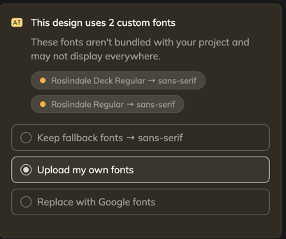
- Upload your own. Select the licensed font file. Anima applies it immediately.
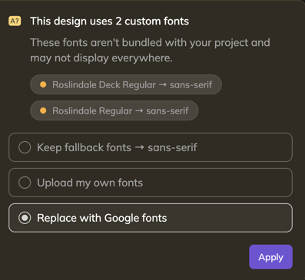
- Replace with a Google Font. Anima swaps the fonts to the closest-matching Google Font.
Original fonts accessible
Fonts that are publicly available load directly from the source. These appear with a green dot in the alert.
Your project renders with the original fonts out of the box. You can still change them:
- Keep the original. No action needed.
- Upload your own. Drag a different font file into the chat to override it.
- Replace with a Google Font. Ask in the chat: "Use [Name of Font] Google font for [body/Headings] text."
Note: Fonts loaded from the original source may be subject to the site owner's license. If you plan to publish your project, verify you have the rights to use them.
Changing fonts later
You can swap fonts at any time through the chat:
- Ask Anima: "Use Montserrat for headings" or "Change the body font to Inter"
- Upload a file: Drag and drop a font file into the chat, or use the paperclip icon
Updated 8 months ago