
Plan Mode
Plan Mode is a new way to work with the Playground - instead of jumping straight into code generation, you can first discuss, iterate, and let the AI break down your idea into clear steps before any code is written.
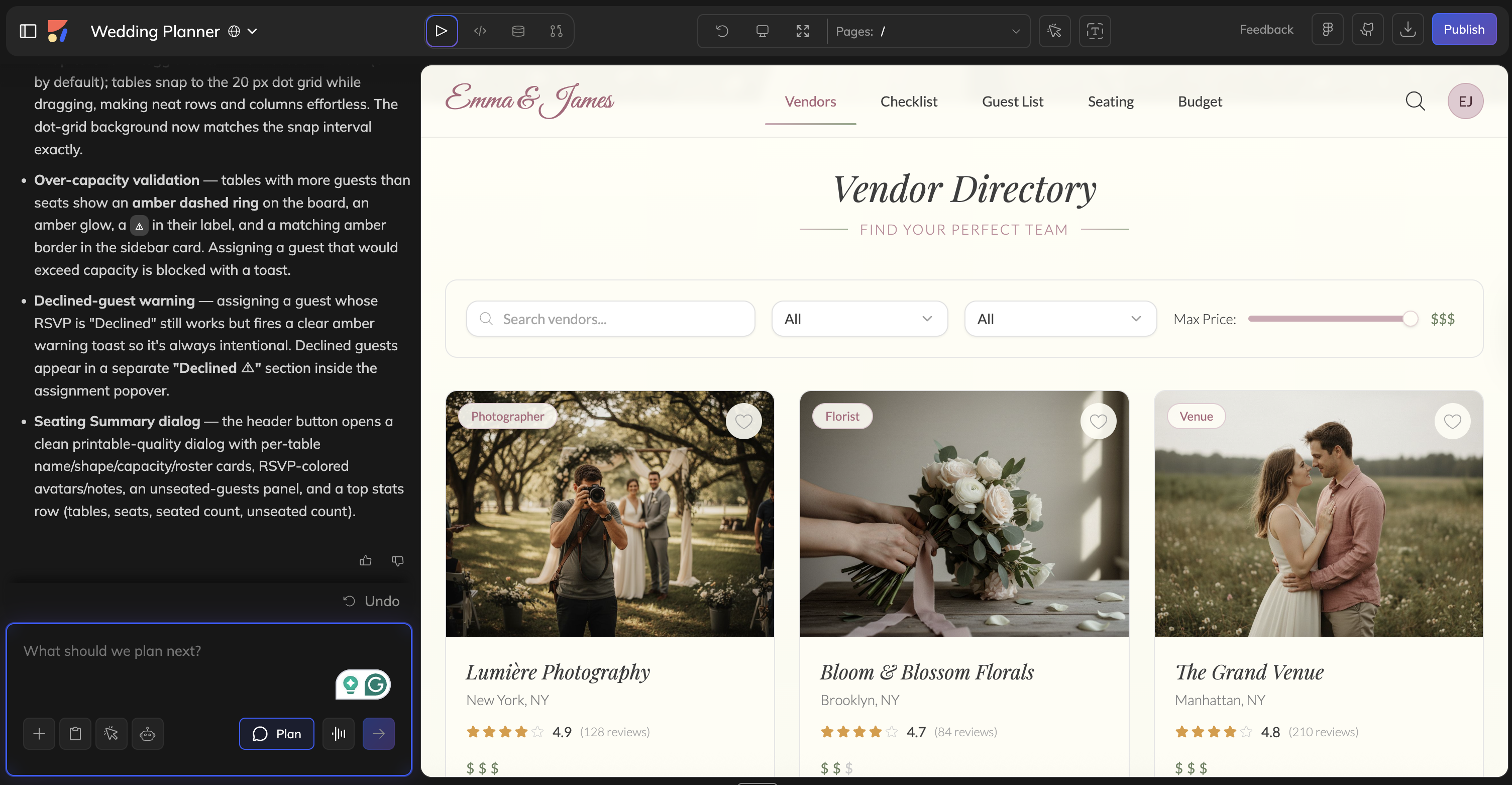
Why Use Plan Mode?
When you send a prompt in the Playground, the AI thinks and then generates the code immediately. That works great for straightforward requests. But for bigger or more nuanced tasks, a single prompt often isn't enough, and you might end up going back and forth, losing context, or missing parts of what you wanted.
Plan Mode lets you have a conversation with Anima’s AI first. You describe what you want, the AI proposes a step-by-step plan, and you refine it together until it’s perfect. Only then Anima starts generating the code according to the plan.
The result: better output - you get what you asked for, fewer revisions, and nothing gets missed.
When to Use It
- Implementing a new feature:
You want to add a feature to your app, such as a user leadboard, data tables, and charts. Instead of crowding all details into a single prompt (which may confuse the AI), activate Plan Mode. Describe your goals, discuss the approach, and let the AI divide the process into manageable steps.s. - Making design changes across multiple pages:
Your app currently uses a light theme, and you want to add a dark mode that functions across every screen, dashboard, settings, modals, and more. You could prompt this all at once, but with so many moving parts, the AI is more likely to miss components or apply styles inconsistently. With Plan Mode, it first maps out every section and component that needs updating, then systematically works through the plan, resulting in fewer mistakes and consistent dark mode everywhere. - Exploring different approaches:
Not sure how to solve a problem? Maybe you're debating between a tab layout vs. a sidebar, or choosing between two different data architectures. Use Plan Mode to discuss the trade-offs and pick an approach before committing to code. - Refactoring or restructuring your app:
Your app has expanded, and its structure requires reorganizing components, merging duplicate sections, or enhancing the page hierarchy. Plan Mode assists you in visualizing what needs to move where before making changes, so you avoid breaking things along the way.
How It Works
- Enter Plan Mode and click the Plan button. The input field border turns blue.
- Describe what you want - Type your request. The Anima responds with a structured, step-by-step plan instead of generating code right away.
- Refine or commit - You have three options:
a. Accept - The AI starts building, following the plan step by step
b. Discard - Clears the plan so you can start over (you stay in Plan Mode)
c. Keep planning - Keep typing to refine the plan further
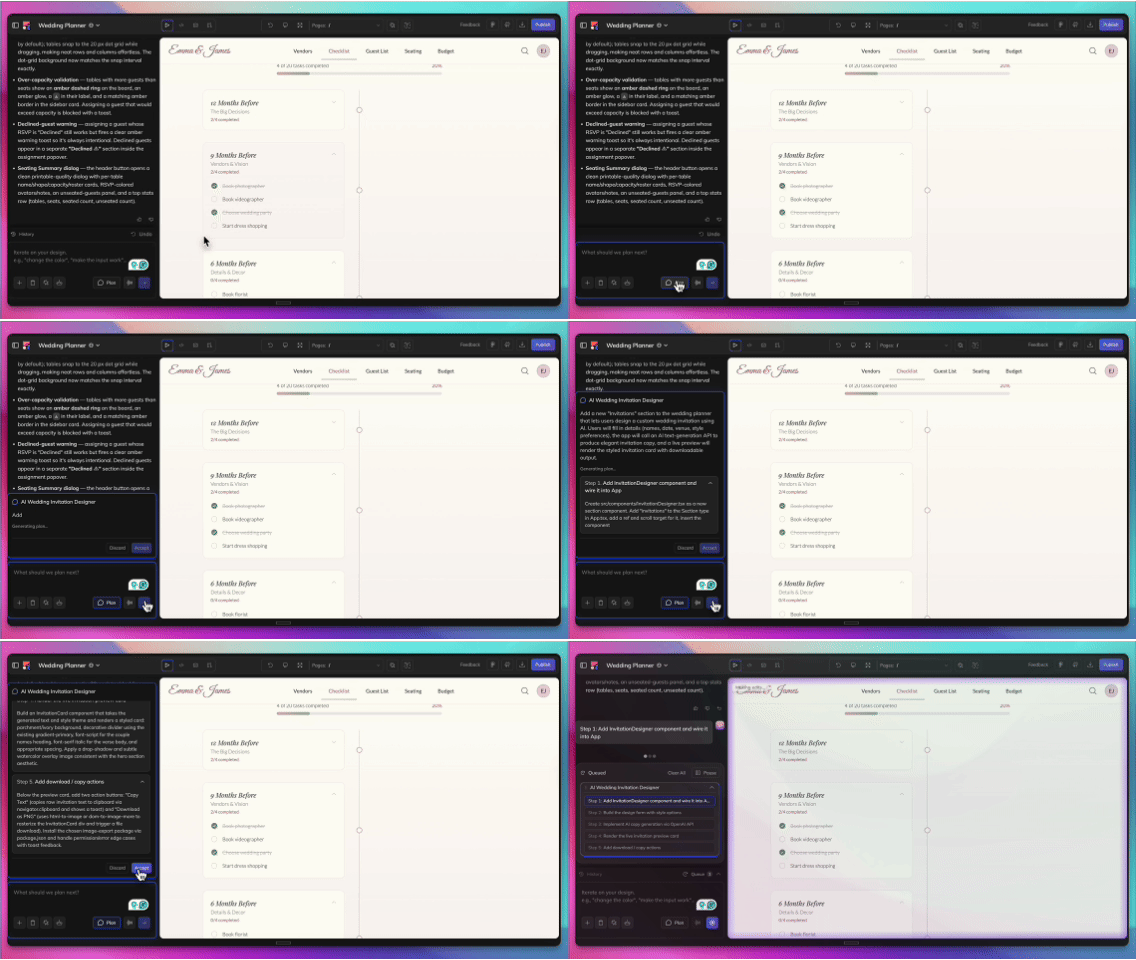
Plans in the Queue
When a plan is accepted, it appears in the message queue as a single item with a blue border. From there, you can:
- Expand or collapse it to see the full plan
- Drag it to reorder in the queue
- Delete it if you change your mind
As each step completes, it gets crossed out so you can track progress at a glance.
Tips
- Be specific in your initial prompt. The more detail you give, the better the plan. Instead of "add a settings page," try "add a settings page with profile editing, notification preferences, and a danger zone for account deletion."
- Iterate before accepting. The plan is a draft: read it carefully and push back, ask for changes, or request alternative approaches before committing.
- Use it for complex tasks, skip it for simple ones. If you just need a button or a quick tweak, regular mode is faster. Plan Mode pays off when the task has multiple moving parts.
Updated 7 months ago