
Starting from a prompt
Describe what you want to build, and Anima generates working code.
When to use this method
Choose this path when you:
- Have an idea but no design yet
- Want to rapidly prototype a concept
- Have a wireframe, flow diagram, or screenshot to reference
- Want to build something with the style of an existing website
- Need polished visuals for demos, pitches, or stakeholder meetings
Best for: MVPs, internal tools, prototypes, landing pages, concept validation
Who uses this:
- Product managers — Communicate ideas without waiting on design resources
- Founders — Demo features before they're built, impress investors with polished prototypes
- Marketing teams — Build landing pages inspired by high-converting sites
- Sales — Match prospect aesthetics for personalized demos
Choose your code output
Before generating, set your code preferences using the dropdowns below the input field.
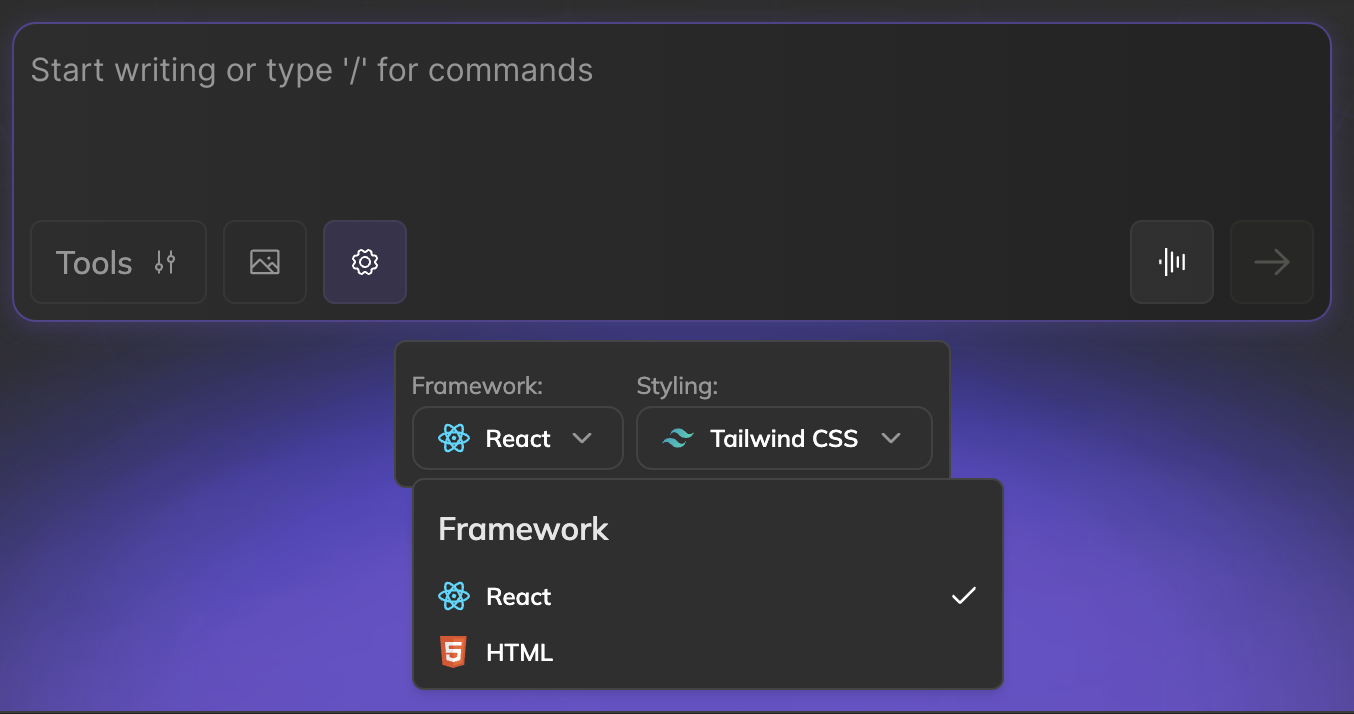
Framework
- React — Component-based output with JSX. Best for interactive apps and teams using React.
- HTML — Clean, standalone HTML. Great for static sites, email templates, or integrating with any backend. Unlike most AI code generators, Anima gives you pure HTML output without framework lock-in.
Styling
- Tailwind CSS — Utility-first CSS classes for rapid styling
- CSS — Standard CSS in a separate stylesheet
- Inline Styles — CSS styles applied directly to elements
Writing effective prompts
The better your prompt, the closer the output matches what you have in mind.
Basic structure
A good prompt typically includes:
- What type of app or page - Dashboard, landing page, form, etc.
- Key features or sections - What should be on the screen
- Style preferences (optional) - Modern, minimal, playful, etc.
Example prompts
| Goal | Prompt |
|---|---|
| Dashboard | "Build a dashboard with charts showing monthly sales, user growth, and a table of recent orders" |
| Landing page | "Build a landing page for a fitness app with a hero section, three feature cards, pricing plans, and a signup form" |
| Internal tool | "Build an employee directory with a search bar, filter by department, and profile cards showing name, role, and contact info" |
| E-commerce | "Build a product page with image gallery, size selector, add to cart button, and customer reviews section" |
Pro tips
Be specific about data. Instead of "show some stats," say "show monthly revenue, active users, and conversion rate."
Mention quantities. "Three pricing tiers" or "a grid of 6 product cards" helps Anima structure the layout correctly.
Reference styles. Phrases like "modern and minimal," "similar to Notion," or "with a dark theme" guide the visual direction. You can also reference any website directly — see Inspired by any website below.
Describe interactions. "Clicking a card opens a detail modal" or "the sidebar collapses on mobile" helps with functionality.
Adding visual context
You can attach images to your prompt to give Anima more context. This works great for wireframes, flow diagrams, or screenshots of inspiration.
Supported formats
PNG, JPEG, WebP
How to attach images
Three ways to add images:
- Drag and drop - Drop images directly into the input area
- Click the image icon - Opens a file picker
- Use the "Build from flow" chip - Quick shortcut for flow diagrams
What works best
| Image type | How Anima uses it |
|---|---|
| Flow diagrams | Understands screen relationships and navigation |
| Wireframes | Extracts layout structure and component placement |
| Screenshots | Captures style inspiration and feature ideas |
| Sketches | Interprets rough layouts (works surprisingly well!) |
Tips for flow diagrams
- Use clear labels for each screen or section
- Draw arrows to show navigation flow
- Keep it simple - stick figures and boxes work fine
- Add annotations for key interactions
How Anima interprets images
When you attach an image, Anima:
- Identifies distinct screens or sections
- Reads text labels as hints for content
- Understands flow direction from arrows or positioning
- Extracts visual style cues (colors, spacing, shapes)
Pro tip: Combine an image with a text prompt for best results. "Build this flow diagram as a React app with a modern, clean design."
Inspired by any website
Capture any site's visual DNA — colors, typography, spacing — and apply it to your prototype instantly.
How it works
- Add "inspired by [URL]" to any prompt
- Anima extracts brand colors, typography, spacing, and layout patterns
- Your prototype inherits that brand's visual DNA
The site you reference doesn't need to be in your industry. The AI translates the visual language, not the content.
Example prompts
| What you want | Prompt |
|---|---|
| Dashboard with a specific style | "Build a dashboard inspired by linear.app" |
| Landing page with brand aesthetics | "Build a landing page for a travel app inspired by airbnb.com" |
| Match a competitor's look | "Build a pricing page inspired by stripe.com/pricing" |
Why use "inspired by"
- Skip design briefs — A URL reference does the heavy lifting
- Communicate visual direction instantly — "Like Netflix.com" becomes tangible in seconds
- Start with proven aesthetics — Begin with what works instead of a blank canvas
Learn more about Inspired By →
Iterating on results
Your first generation is a starting point. Here's how to refine it:
Follow-up prompts
After the initial generation, send more prompts to adjust:
- "Make the header sticky"
- "Add a dark mode toggle"
- "Change the color scheme to blues and grays"
- "Add loading states to the buttons"
Combining prompt with manual editing
Switch between:
- Natural language - For broad changes ("reorganize the layout")
- Direct code editing - For precise tweaks (adjust specific CSS values)
Both approaches work together. Edit code directly, then continue with prompts.
Troubleshooting
The output doesn't match what I expected
Try more specific prompts. Vague prompts get generic results. Add details about layout, content, and style.
Attach a reference image. A wireframe or screenshot of inspiration helps Anima understand your vision.
Iterate in steps. Start with the basic structure, then refine with follow-up prompts.
The layout is wrong
Describe the structure. "A sidebar on the left, main content on the right" is clearer than "a two-column layout."
Mention responsiveness. "The sidebar should collapse to a hamburger menu on mobile."
Missing functionality
Be explicit about interactions. "The dropdown should filter the table" or "clicking submit sends the form data."
Some things need backend. Data persistence, authentication, and API calls require connecting a backend.
Next steps
Once your project is generated:
- Edit your project - Customize and extend with prompts or code
- Connect a backend - Add real data and user authentication
- Publish your app - Deploy to a custom domain or export the code
Updated 10 months ago