
Chat input and prompting
Build and modify your app using natural language and visual inputs.
Use text prompts, screenshots, web captures, Figma imports, and voice input to build and modify your app.
Build and modify your app using natural language and visual inputs.

Text prompts
Describe what you want in plain English. Anima can build, modify, and manage your entire project through chat.
What you can ask:
- Build and modify: "Make the header sticky," "Add a contact form," "Create a dark mode"
- Delete files: "Delete the old header component," "Remove the unused utils file"
- Publish: "Publish my app," "Deploy to production"
AI image generation
Generate or edit images directly through chat prompts.
How to use:
- Select a target: Click on an existing image you want to modify, or select an area on the page where you want to place a new image
- Describe your request: In the chat, ask Anima to generate a new image or tweak the selected one
Examples:
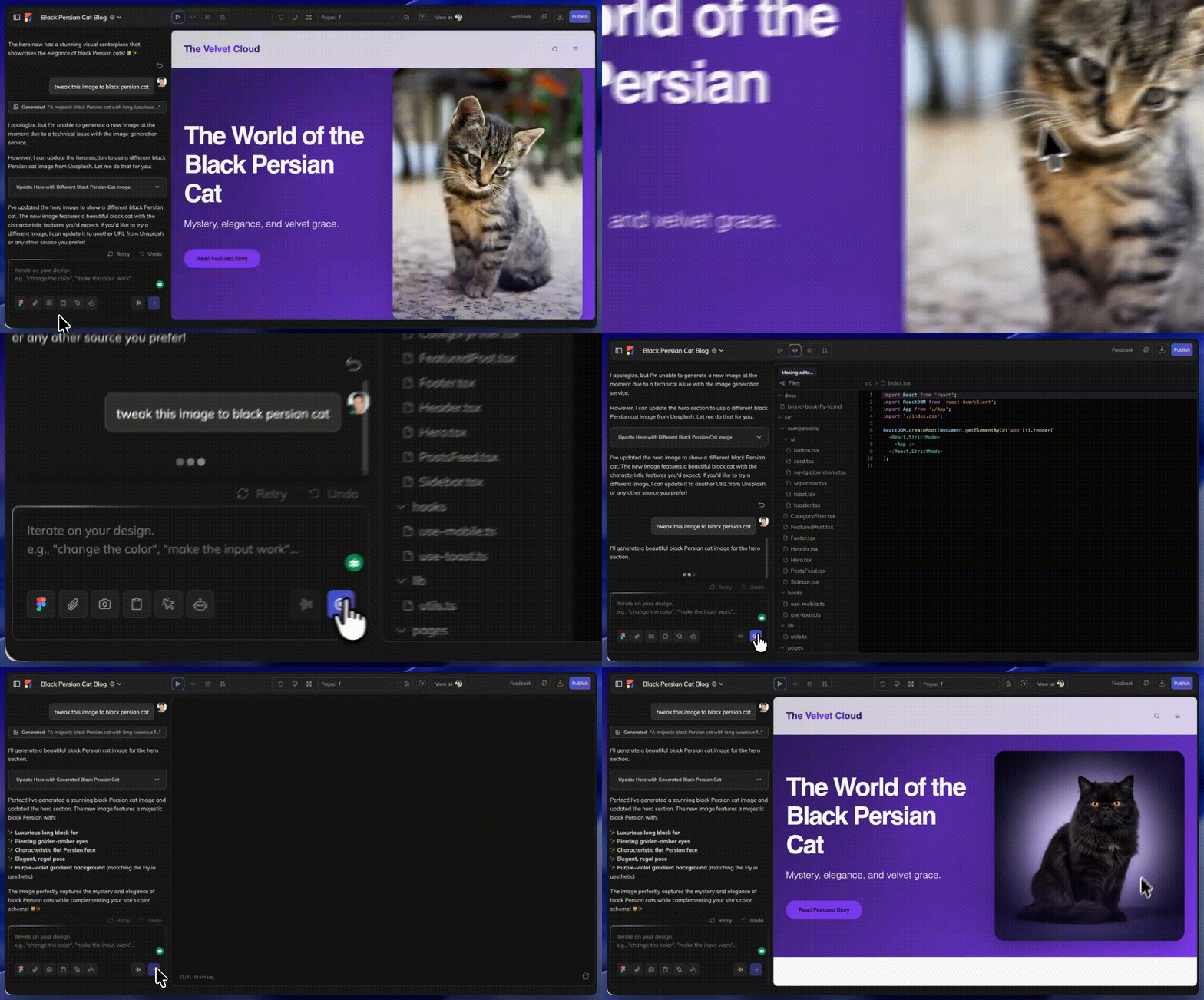
- "Generate a hero image with abstract gradients"
- "Make this image more vibrant and add more light to the room"
- "Replace this placeholder with a product photo of headphones"
Input toolbar
The chat input includes a toolbar with several ways to add context to your prompts:
Figma import
Click the Figma icon to import or link a Figma design directly into your project.
Attach files
Click the paperclip icon to attach files from your computer to the chat.
Supported assets:
- Images: Upload images to use in your app. Anima hosts them automatically.
- Fonts: Upload custom font files to use in your project. Anima hosts and applies them. Learn more about fonts →
Take a screenshot
Click the camera icon to capture a screenshot of your current playground preview. The screenshot is automatically added to your chat as visual context for your next prompt.
Clipboard gallery
Click the folder icon to open the Clipboard Gallery. This displays UI elements you've captured using the Anima Chrome Extension.
Unlike screenshots, captured elements include real HTML structure, CSS properties, and element hierarchy. You can capture buttons, cards, forms, navigation bars, or any UI pattern from any website, including login-protected pages and internal tools.
Select a capture from your gallery to attach it to your prompt, then ask Anima to build something similar. Anima understands the structure and properties, not just the appearance.
Learn more about Capture Element →
Element selector
Click the cursor icon to enter element selection mode. While active, you can click on any element in the preview to select it as context for your prompt. Hold Shift and click to select multiple elements. Selected elements appear in a bar above the chat input showing how many are selected. Click "Clear" to deselect all.
Voice input
Click the microphone icon to dictate your prompt using voice input.
Send
Click the purple arrow button to send your message.
Suggestion chips
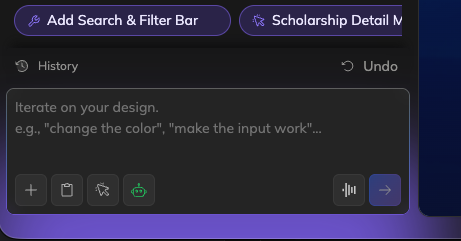
The Anima agent suggests next steps as clickable chips below the chat input. These come from your project's TODO.md file, where the agent tracks tasks it thinks your app needs.
Click a chip to place the task in the input field. You can review or edit it before sending. Chips rotate automatically as you use them.
Learn more about agent memory →
Undo and revert
Each AI response includes options to undo or revert changes:
- Undo: Undo the last change made by Anima
- Retry: Regenerate the AI response
- Revert to this message: Click the arrow icon on any previous response to restore your project to that point
Updated 7 months ago