
Import from Figma
Import from Figma
Pull additional Figma screens or components into your project while you're building. Sync design updates or expand your app without starting over.
Already iterating in the playground? Use Import from Figma to bring in more content from your Figma file anytime.
Starting a new project from Figma? See Starting from Figma instead.
When to use it
- Add more screens from your Figma file that you didn't import initially
- Sync design changes when your team updated the Figma after you started building
- Pull in components to reuse across your project
- Combine designs from multiple Figma files into one working app
How it works
- Click the Figma button in the chat input
- Paste your Figma link and click Continue
- Select an Import Mode to tell Anima how to use the design
- Optionally add instructions in the Initial Prompt field
- Click Continue to send the import to chat
Anima fetches your design and adds it to the project based on the mode you selected.
Import modes
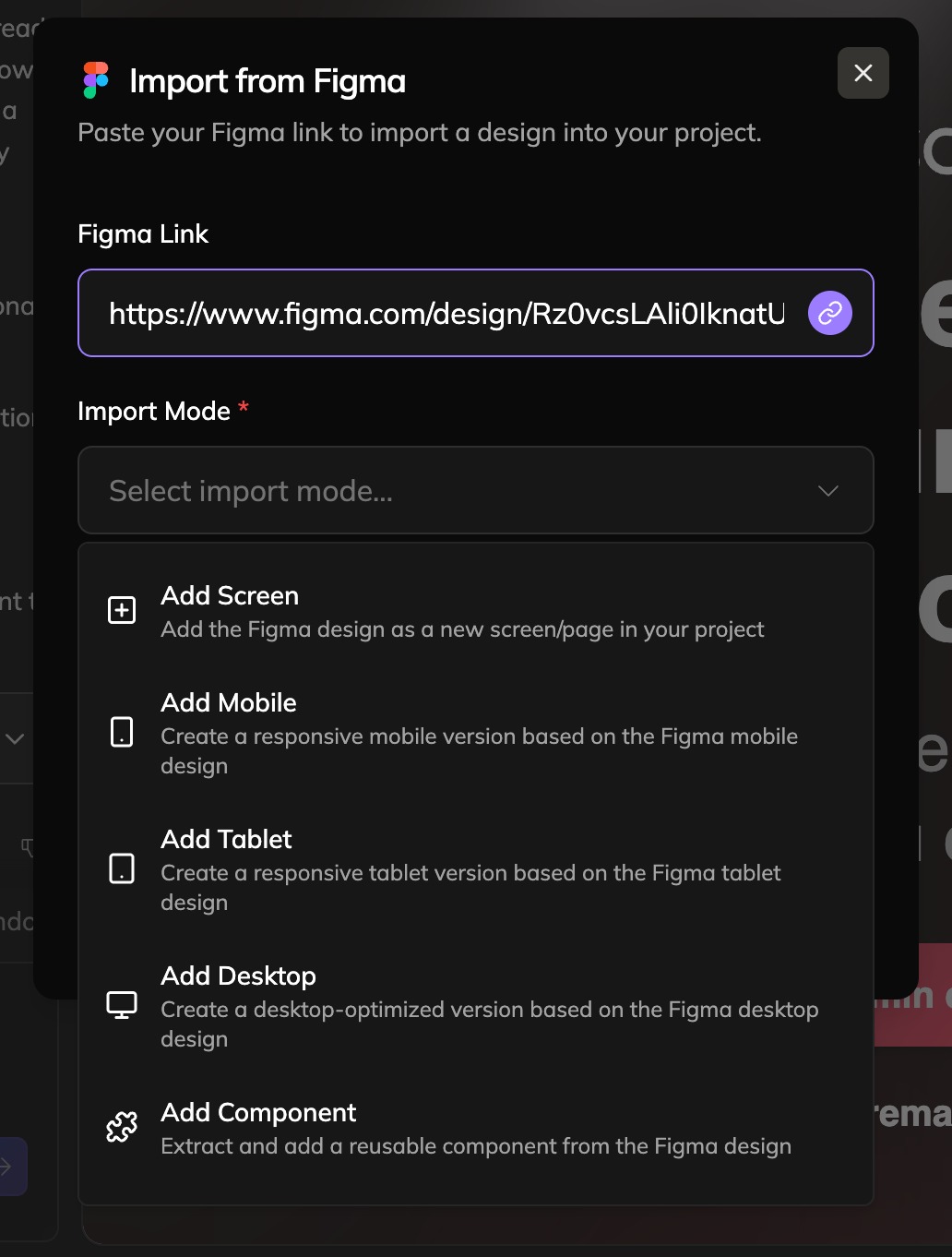
- Add Screen imports the design as a new page in your project
- Add Mobile creates a responsive mobile version from your Figma mobile frame
- Add Tablet creates a responsive tablet version from your Figma tablet frame
- Add Desktop creates a desktop-optimized version from your Figma desktop frame
- Add Component extracts a reusable component you can place anywhere
Use the responsive options (Mobile, Tablet, Desktop) to build a fully responsive page. Import your desktop design first, then add the mobile and tablet versions. Anima combines them into one responsive layout.
Requirements
Import from Figma requires a connected Figma account.
Updated 9 months ago
Did this page help you?