
Custom Domain
You can use your own domain DNS to deploy your Anima Playground.
Requirements
Plan access: Custom domains are available for the Starter plan and above. Free users can publish to an Anima-provided URL.
Own your domain first: Anima is not a domain provider. Get your domain from a registrar like GoDaddy, Google Domains, or Namecheap before connecting it here.
Adding a custom domain
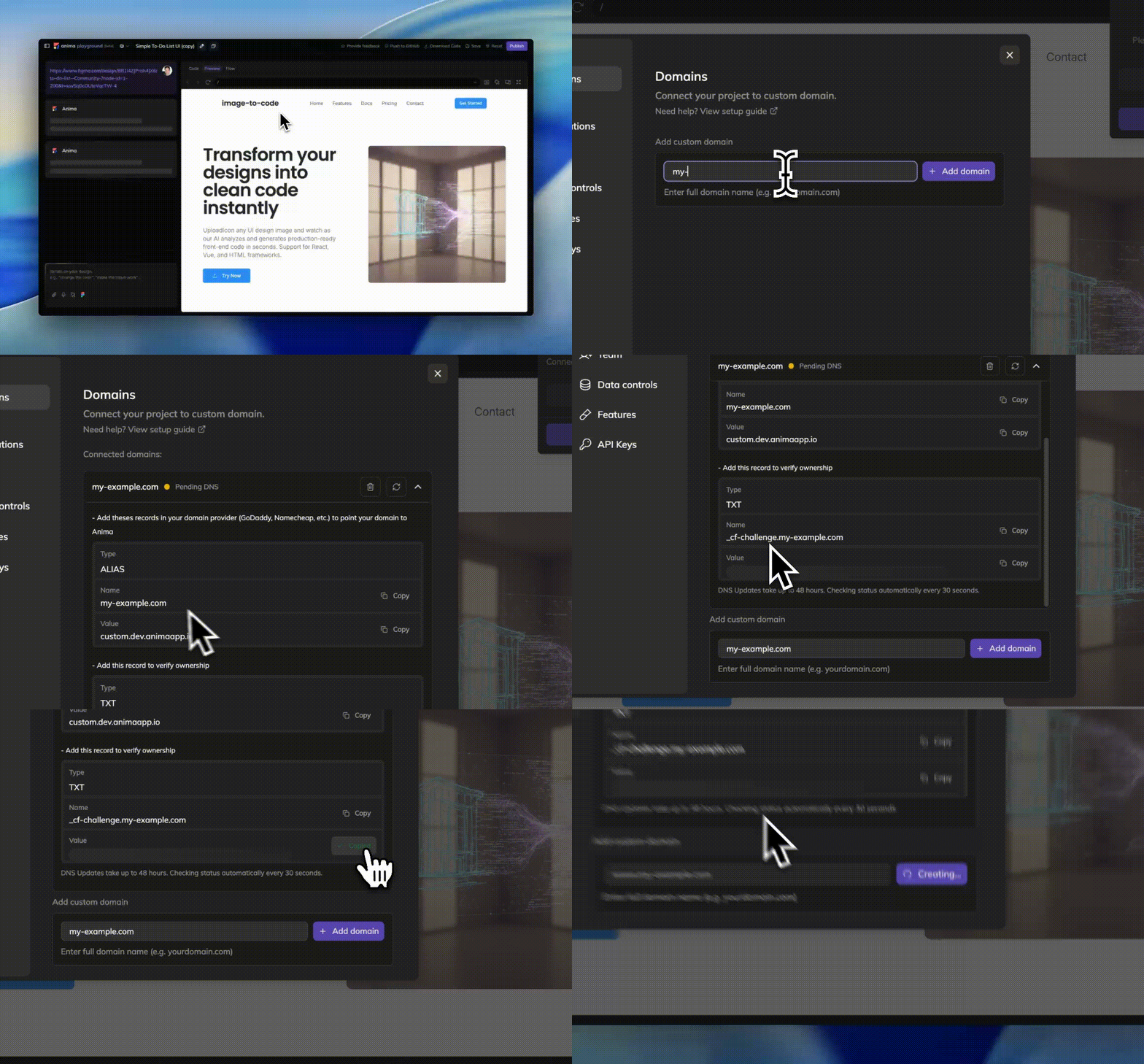
Connect a custom domain anytime—whether your project is published or not.
- Click the Publish button in the top right
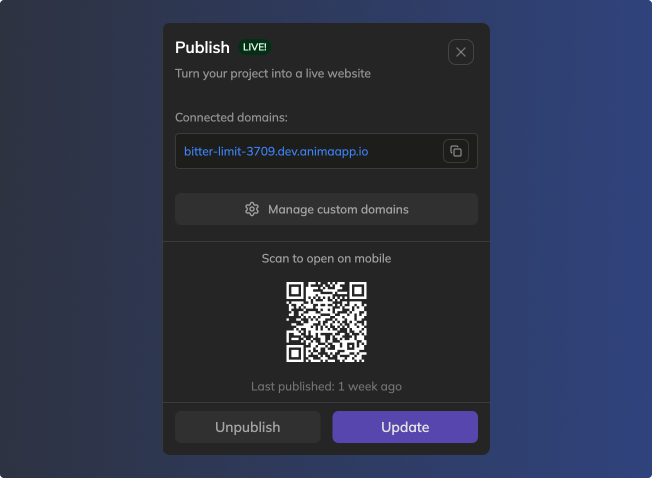
-
Click "Add custom domain"—this opens project settings
-
Enter your domain. Add each domain separately:
example.com(without www)- Or a subdomain like
subdomain.example.com
-
Click "+ Add domain"
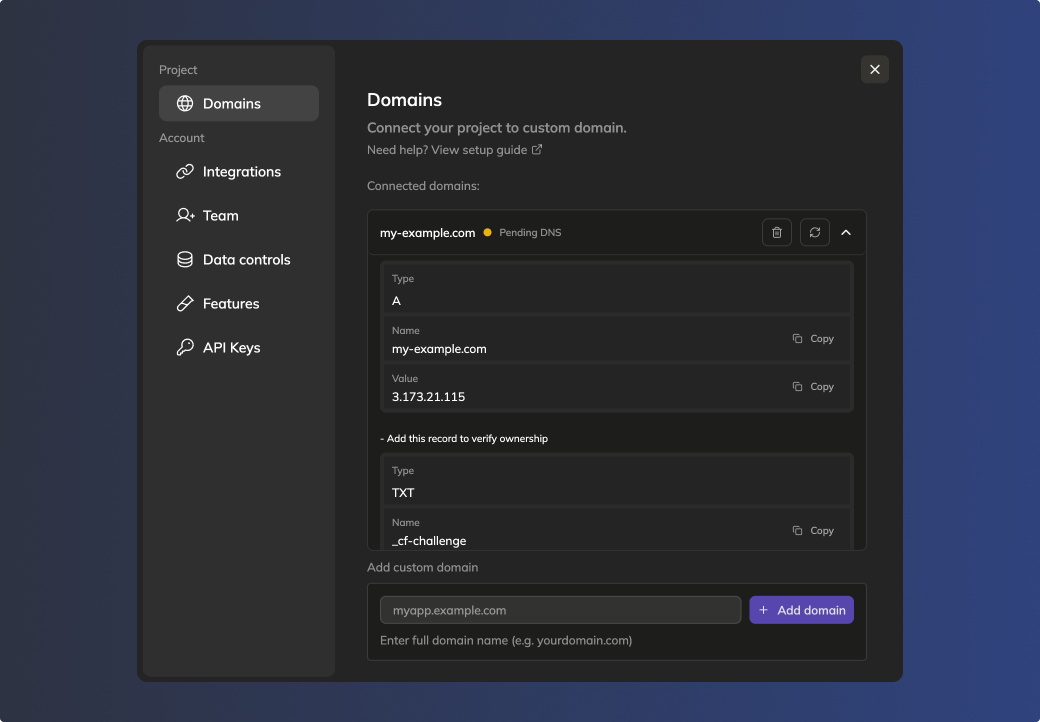
-
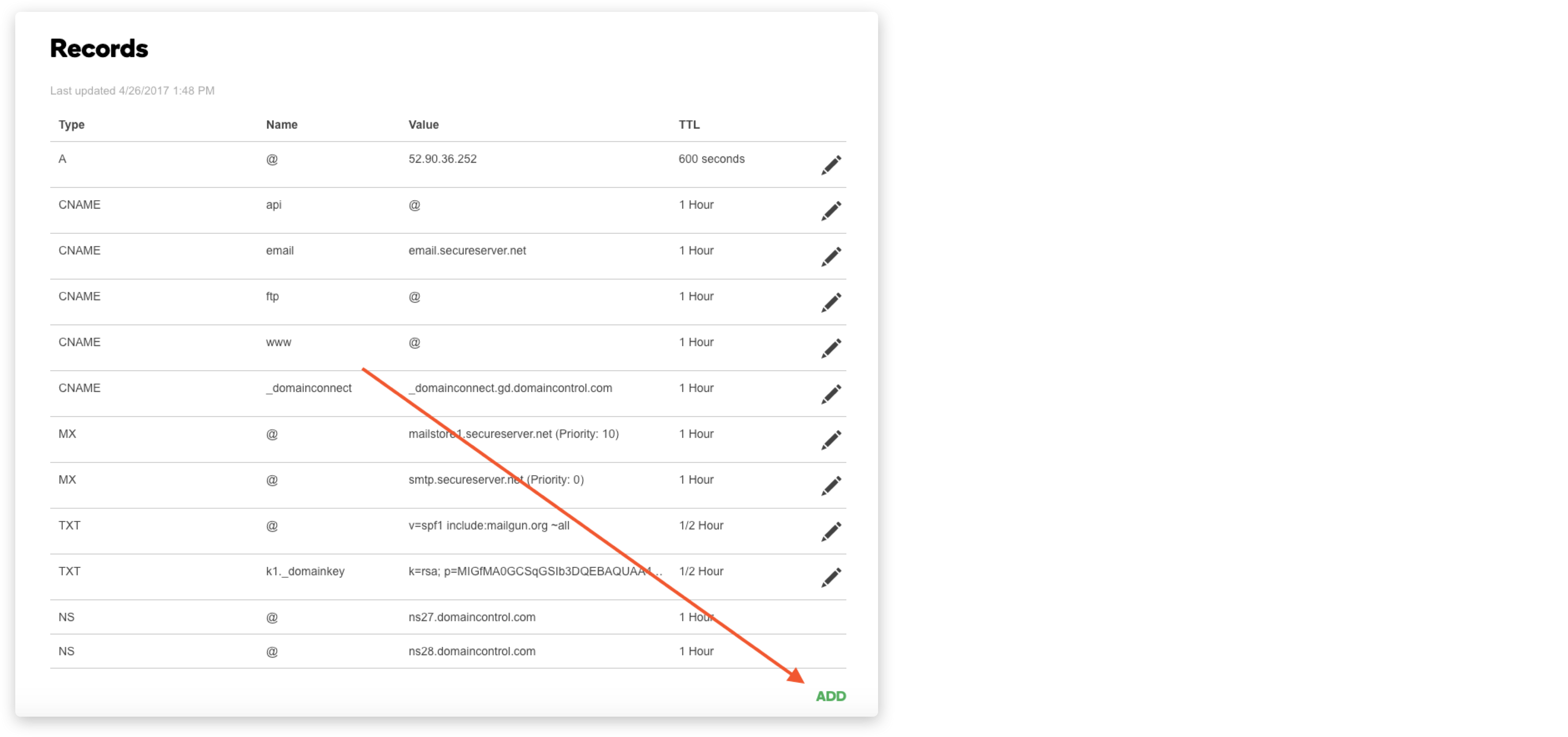
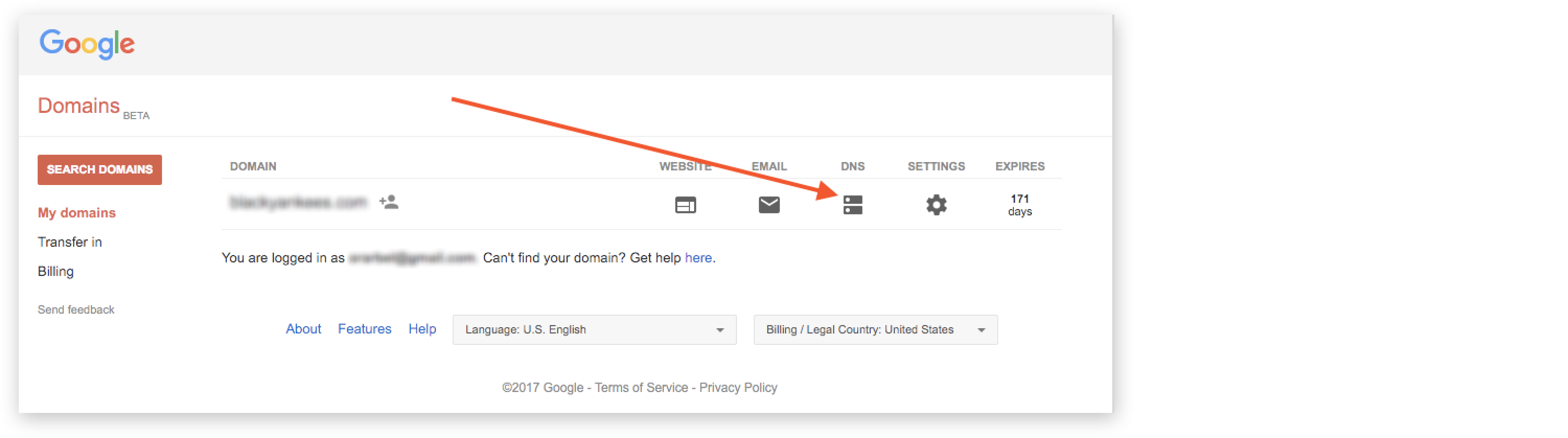
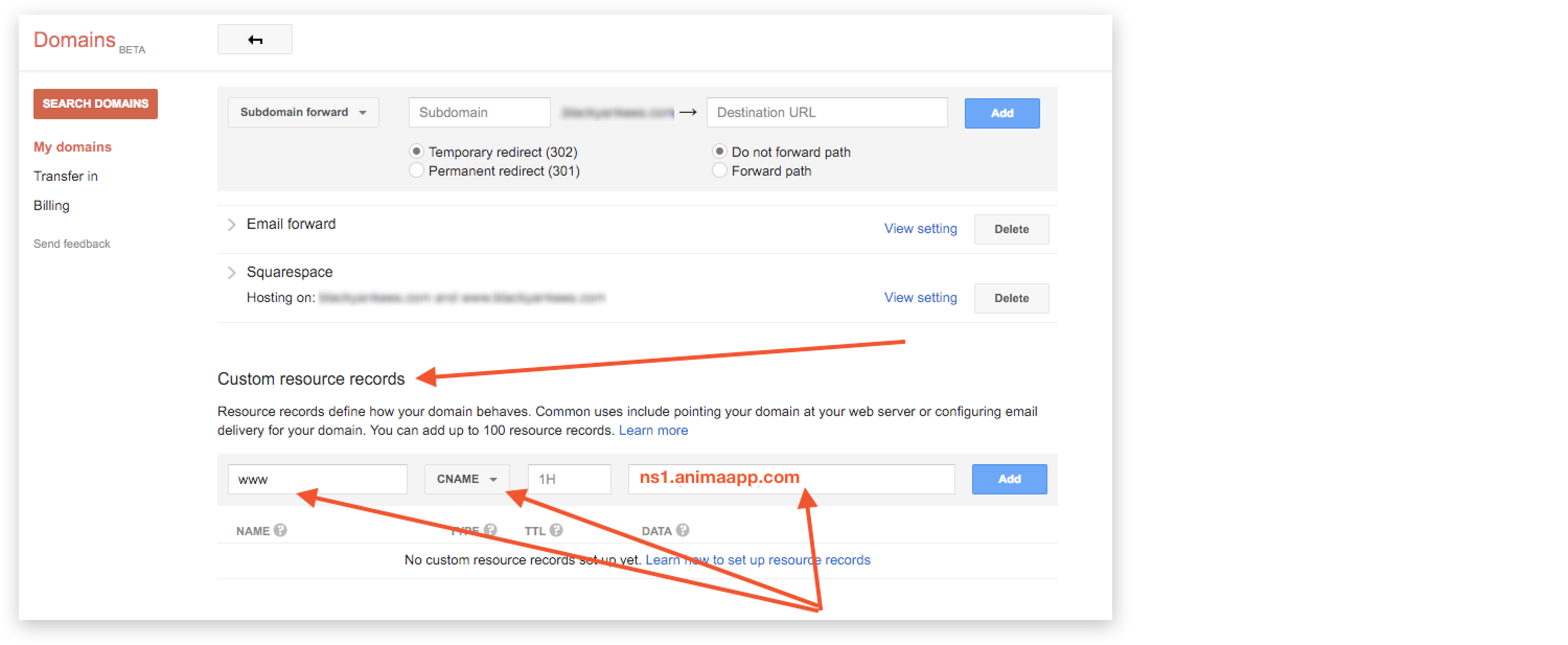
Copy the DNS records shown and add them to your domain provider's settings.
Need help configuring DNS? See our guides for GoDaddy, Google Domains, and Namecheap below.
-
Wait for domain verification (status updates automatically, or use the refresh button)
Usually, these are the settings required for custom domains:
For Apex (root) domains:
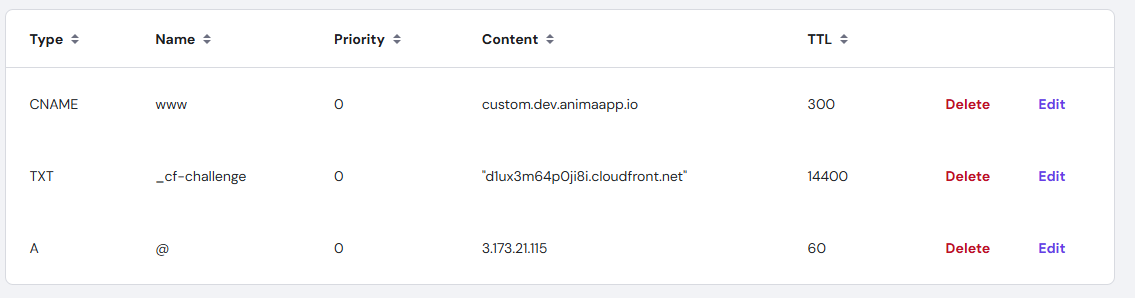
@ A 3.173.21.115
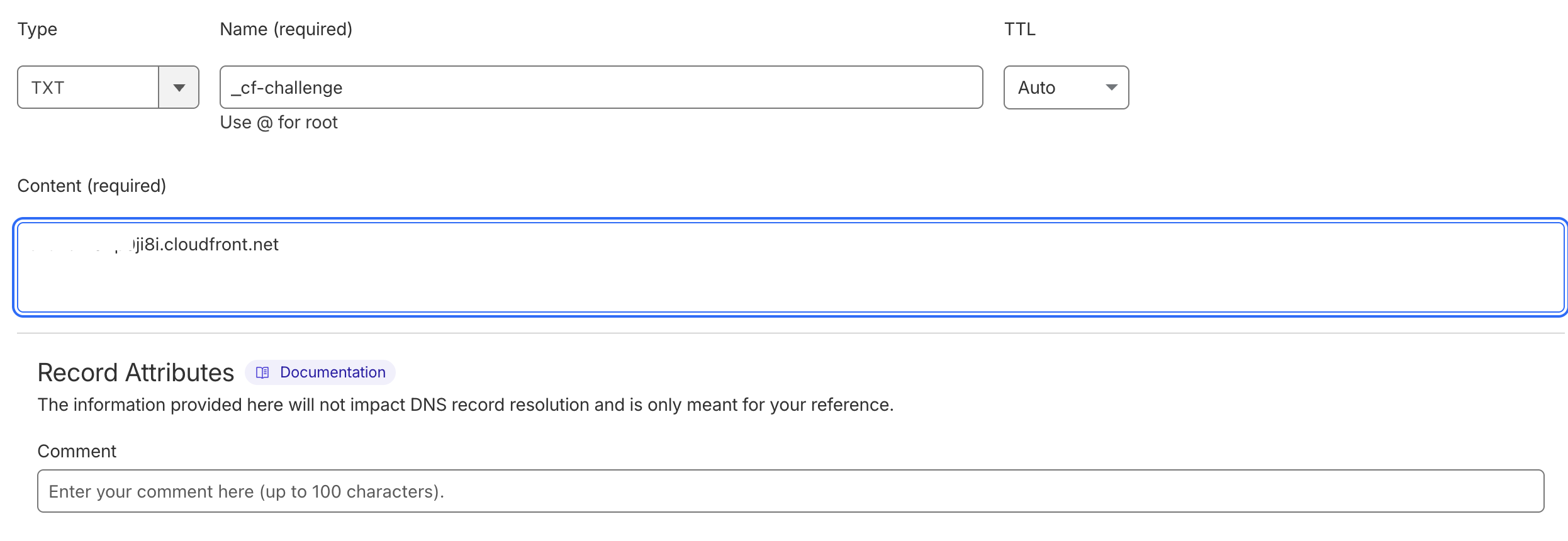
_cf-challenge TXT d1ux3m64p0ji8i.cloudfront.net
For Non root domains (e.g., for www):
www CNAME custom.dev.animaapp.io Domain verification
After adding a domain, it will show as "Pending DNS verification".
To verify whether your domain resolves to the expected IP address in Anima’s system, enter it at dns.animaapp.com. The tool gives you instant feedback on your DNS configuration.
Verification process:
- Status refreshes automatically every few minutes
- You can manually refresh using the refresh icon next to the domain
- Once active, the domain status changes from Pending to "Active"
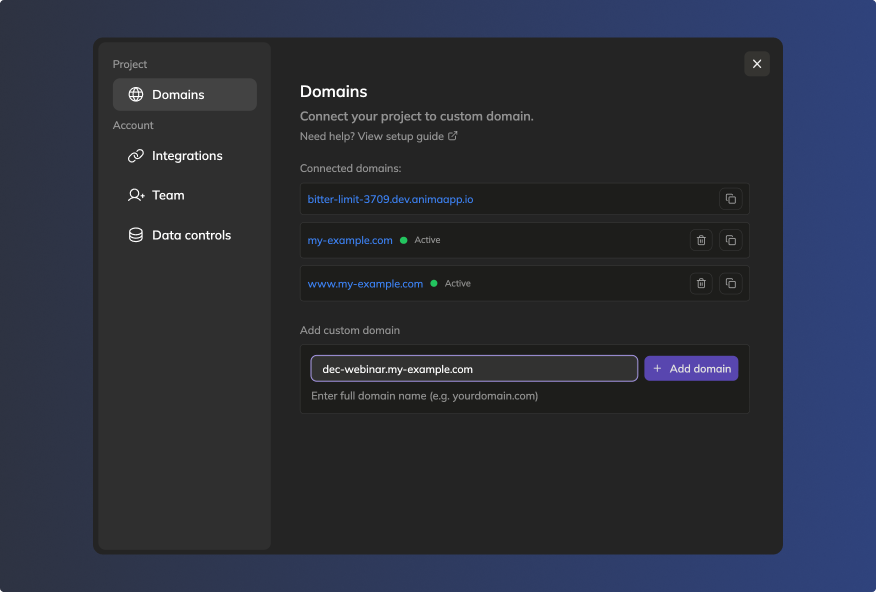
Managing your domains
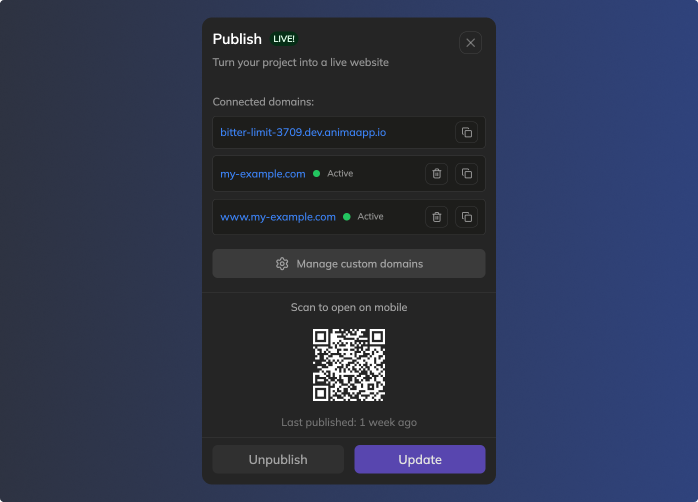
View Connected Domains
- Click Publish to see all active connected domains
- Or click the Settings button in the top bar → Domains tab
Remove a Domain
- Go to Settings → Domains
- Click Remove next to the domain you want to disconnect
Publishing your project
Publishing works with or without custom domains—they're completely independent.
When you publish:
- With connected domains: Your project goes live on both your custom domain(s) and the default Anima URL
- Without connected domains: Your project goes live on the default Anima URL (e.g.,
bitter-limit-2021.dev.animaapp.io)
You can add, remove, or change custom domains anytime without republishing.
What happens when you publish:
- Connected domains: All verified and active domains update automatically
- Default domain: Always available as a fallback (e.g.,
bitter-limit-2021.dev.animaapp.io)
Actions after publishing:
- Copy URL: Copy any connected domain or default URL
- Open in new tab: Click any URL to view your live project
- Scan QR code: Share your project via mobile QR code
- Unpublish: Remove your project from all domains
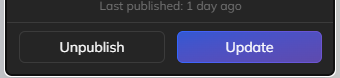
- Update: Publish changes to all connected domains
Troubleshooting
Free plan limitations
Free users see an upgrade prompt when attempting to add custom domains. Publishing to Anima-provided URLs works without restrictions.
Downgraded accounts: Downgrading from a paid plan to the free plan pauses custom domain connections. Your project stays live on the default Anima-provided URL.
Domain not verifying
- Double-check DNS settings at your domain provider match the DNS values exactly
- try entering
@symbol instead of your domain name in thehostfield - DNS changes typically take a few minutes to a few hours to propagate (occasionally up to 48 hours)
- Use the refresh button to check verification status anytime
- Make sure you've added both
www.and non-www.versions if needed
Accessing domain settings
- Via Publish modal: Click "Manage custom domains" button in the publish modal
- Via the Settings button: Click the Settings button in the top bar, then go to the Domains tab
How to configure on domain provider
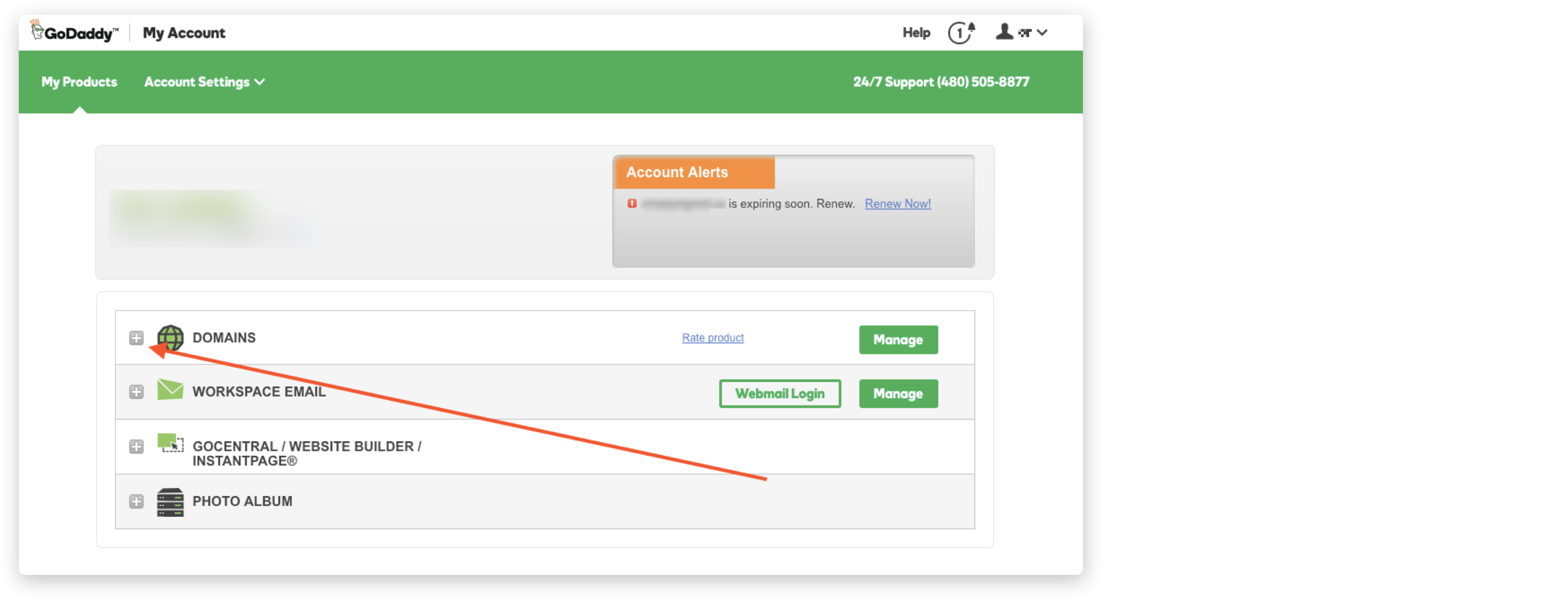
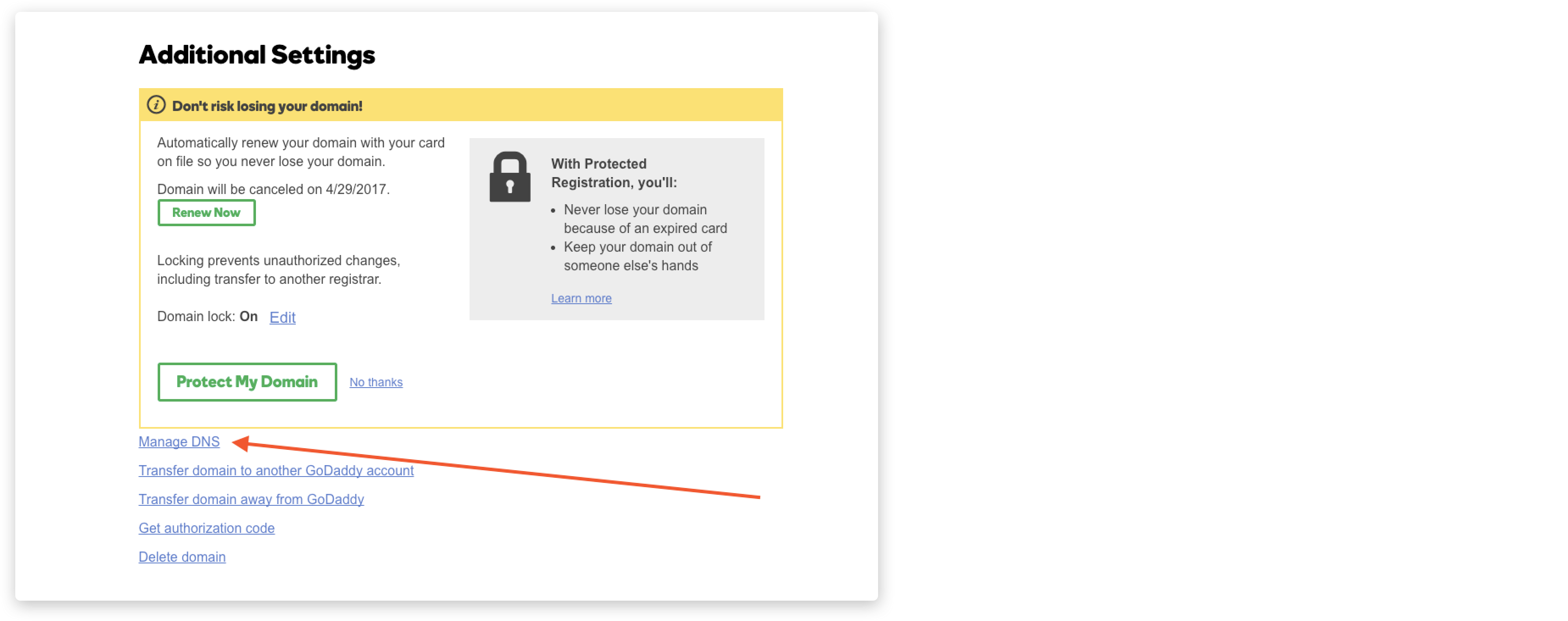
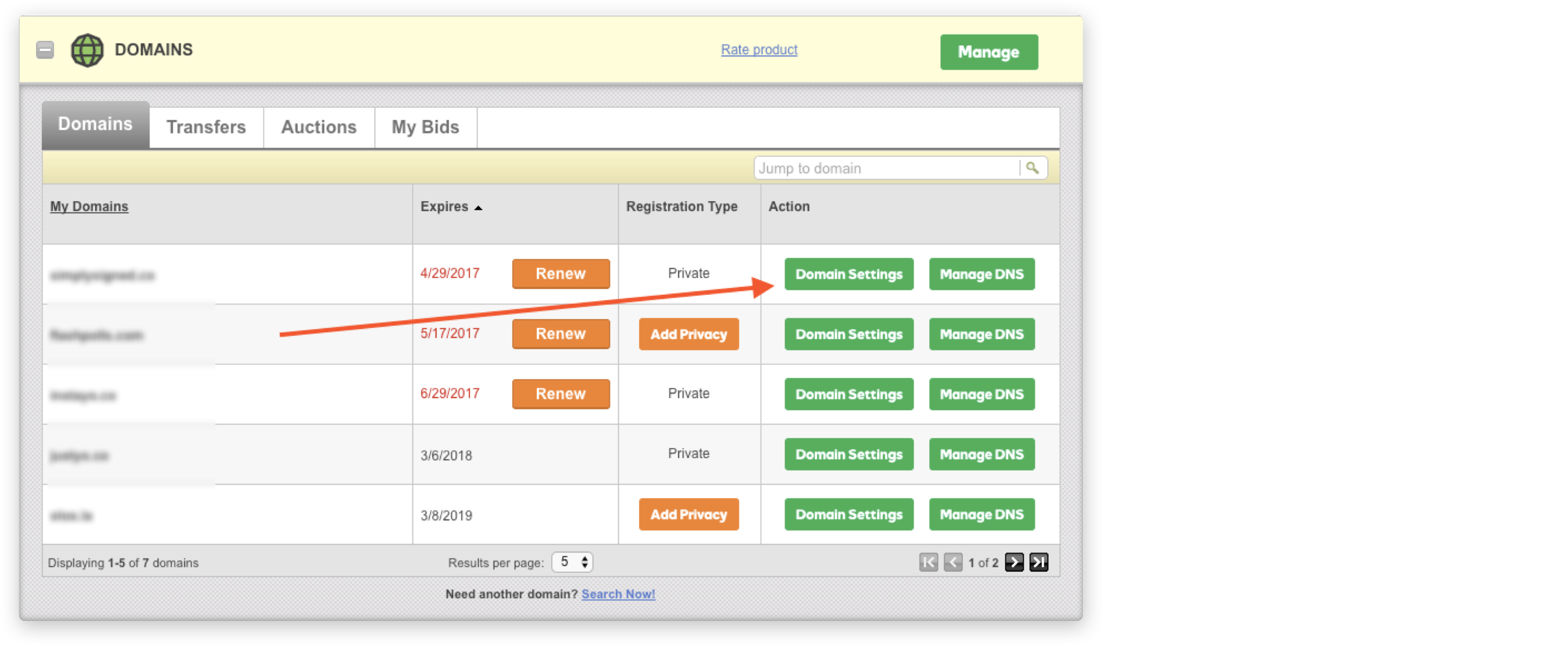
GoDaddy
Google Domains
Cloudflare

Namecheap
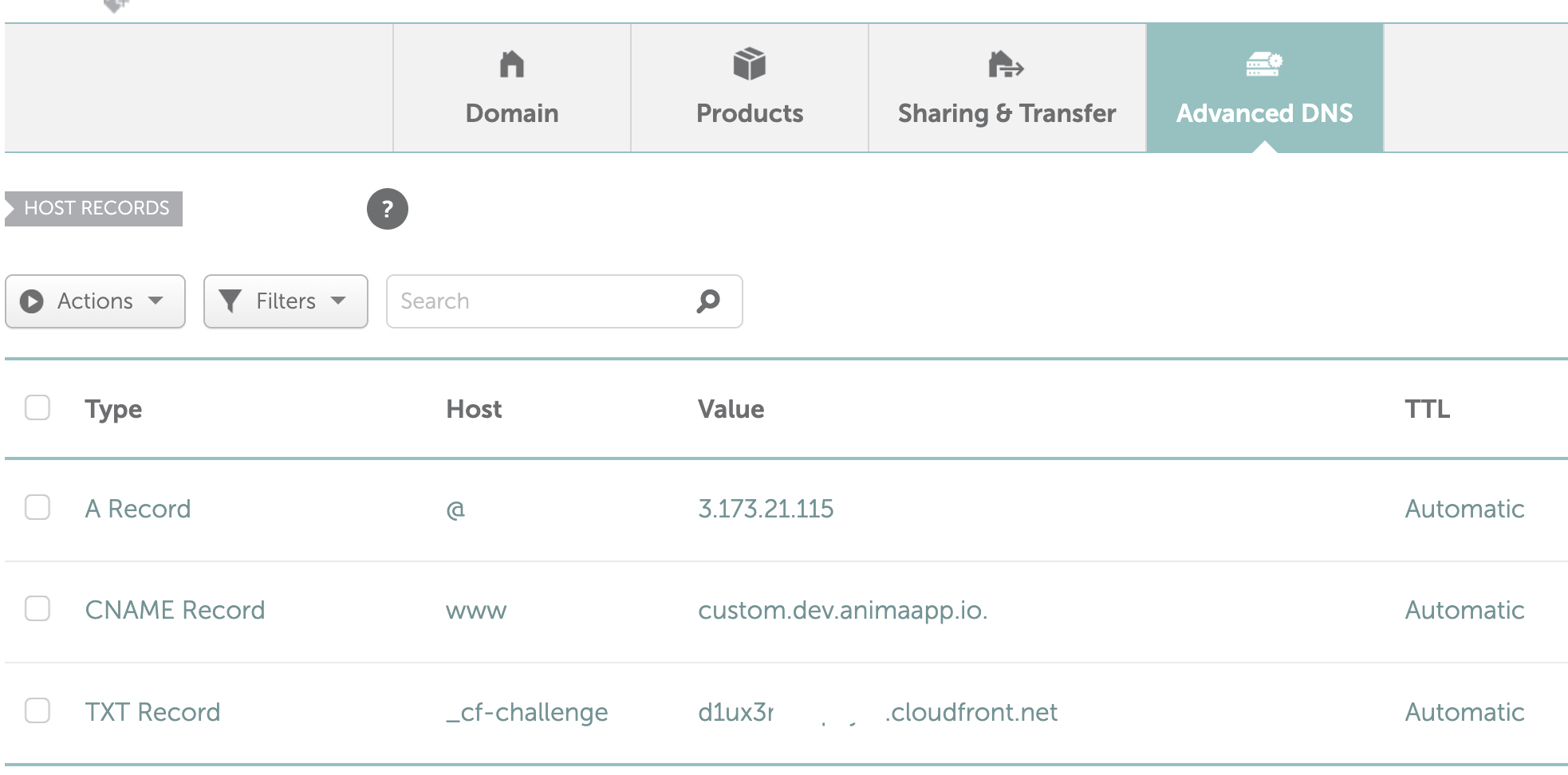
Hostinger
Note: Hostinger applies CAA records by default, which should be deleted in order for the certificate to be authorized.
Troubleshooting
-
If you are stuck at 'pending DNS':
This means that the DNS setup is set up incorrectly. Check your CNAME/A tag and make sure it corresponds to the examples above.
-
If you are stuck at 'pending validation':
This means you set up the DNS A/CNAME values correctly. Check your _cf-challenge value as well as your CAA values.
Note: If you have no CAA values at all, you should be OK.
However, if you must have CAA values, please add the following to your domain DNS:
| Type | Flag | Tag | Value |
|---|---|---|---|
| CAA | 0 | issue | amazon.com |
| CAA | 0 | issue | amazontrust.com |
| CAA | 0 | issue | awstrust.com |
| CAA | 0 | issue | amazonaws.com |
- Another playground is connected to your domain:
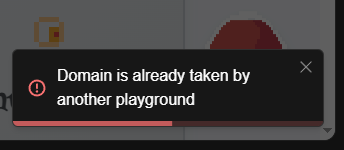
In this case, find the other domain (you can contact our customer success for this) to remove the other playground before publishing again.
- The published domain is not the latest version - make sure to press "update" on the publish a new version.
Note: In the following use cases, the domain will stop being hosted:
- The playground is unpublished
- The custom domain is removed
- Changes to the DNS that might prevent the security certificate from being renewed
- The playground's account subscription expires
- Any violation to our Terms of Service.
Updated 3 months ago