
Starting from Figma
Convert your Figma designs into responsive, production-ready code.
Import your Figma designs and get clean React or HTML code with Tailwind CSS styling.
When to use this method
Choose this path when you:
- Have a Figma design ready (frames, components, or multi-screen flows)
- Want pixel-perfect conversion to responsive code
- Need to maintain design consistency from mockup to production
Best for: UI designs, marketing pages, app interfaces, design system implementations
Two ways to import
Option A: Paste a Figma link (quick)
The fastest way to get started. Just copy a link from Figma and paste it directly into Anima.
Steps:
- In Figma, right-click on a frame and select Copy link to selection (or use
Cmd/Ctrl + L) - In Anima Playground, click Tools → Import Figma
- Paste your Figma link
- Click send
When to use: Simple designs without Figma variables, quick tests, single frames
Note: This method uses the Figma API, which has rate limits. If you hit a limit, you'll see a countdown timer or be prompted to try again later.
Option B: Use the Figma plugin (recommended)
The Anima Figma plugin captures more detail from your design and avoids API rate limits entirely.
Why it's better:
- Captures Figma variables and design tokens
- Better component recognition and naming
- Avoids Figma API rate limits entirely
- Handles larger files more reliably
Getting started:
Install the Anima plugin from Figma Community and follow the in-plugin instructions.
Choose your code output
Before importing, set your code preferences using the dropdowns below the input field.
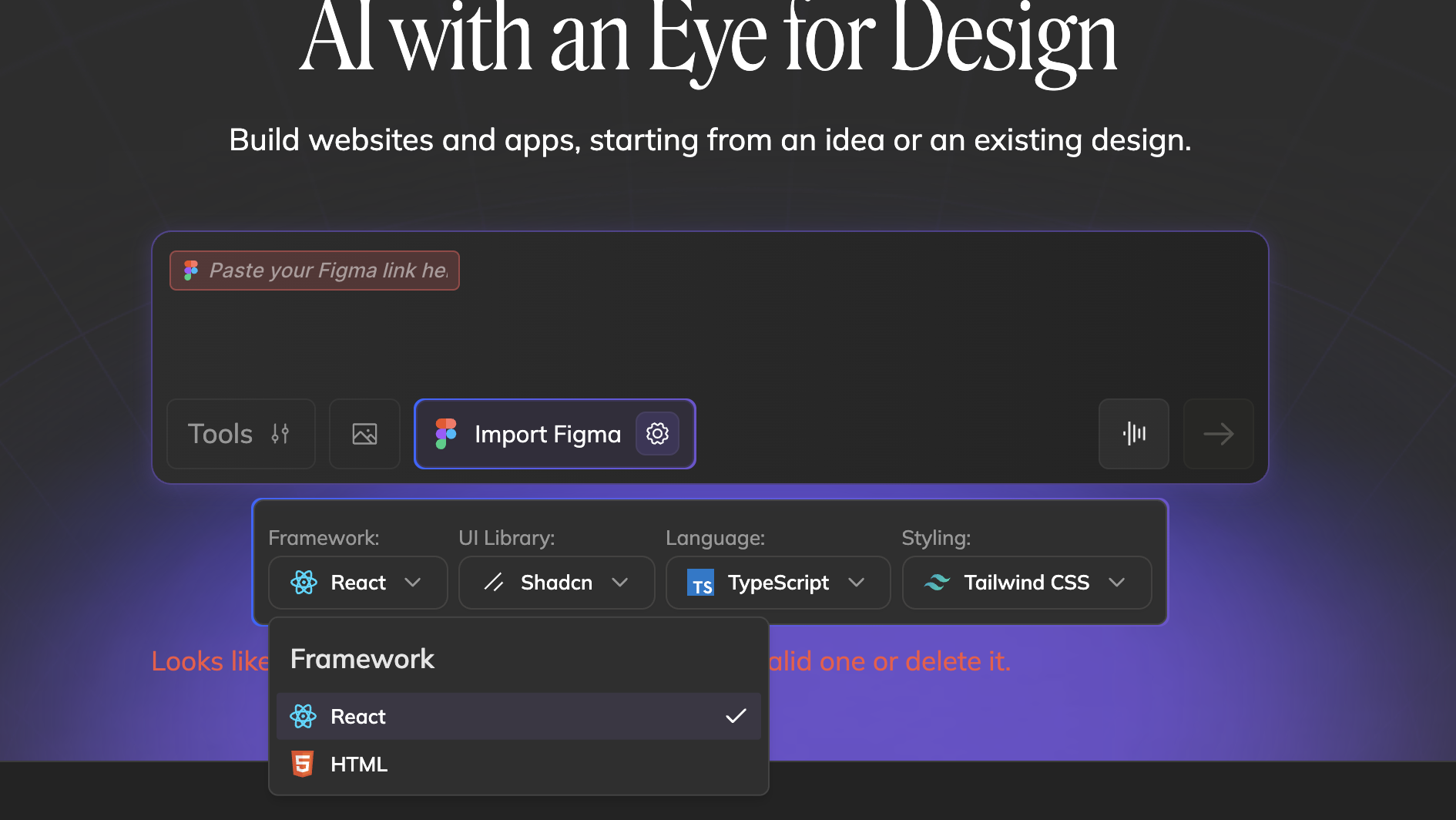
Framework
- React — Component-based output with JSX. Best for interactive apps and teams using React.
- HTML — Clean, standalone HTML. Great for static sites, email templates, or integrating with any backend. Unlike most Figma-to-code tools, Anima gives you pure HTML output without framework lock-in.
UI Library
Choose a component library to use pre-built, accessible components:
- Shadcn — Modern, customizable components built on Radix UI
- MUI — Material Design components
- AntD — Ant Design components
- None — Custom components without a library
Language
For React projects, choose your language:
- TypeScript — Type-safe code with better editor support
- JavaScript — Standard JavaScript without types
Styling
- Tailwind CSS — Utility-first CSS classes for rapid styling
Preparing your Figma design
Get better results by following these best practices:
Use auto-layout
Designs with auto-layout convert to cleaner, more maintainable code. Anima translates auto-layout properties directly to CSS Flexbox.
- Do: Use auto-layout for lists, cards, navigation, and any repeating patterns
- Avoid: Absolute positioning when auto-layout would work
Name your layers
Meaningful layer names become component and class names in your code.
| Instead of... | Use... |
|---|---|
Frame 427 | hero-section |
Rectangle 12 | card-background |
Group 3 | nav-links |
Organize multi-screen flows
When exporting multiple screens:
- Put each screen in its own top-level frame
- Name frames descriptively:
home,dashboard,settings - Use consistent frame sizes for related screens
Building a complete flow? See Import multi-screen flows from Figma for step-by-step instructions on importing connected screens with navigation.
Use Figma variables
If you're using Figma's variables feature for colors, spacing, or typography, the plugin will capture these and convert them to CSS custom properties.
What Anima converts
| Figma | Code output |
|---|---|
| Frames & auto-layout | HTML structure with Flexbox/Grid |
| Colors & fills | CSS variables, Tailwind classes |
| Text styles | Typography system |
| Components | React components |
| Variants | Component props |
| Constraints | Responsive behavior |
| Images & icons | Optimized assets |
Handling rate limits
Figma's API has usage limits that can temporarily block imports. Here's what to know:
If you see a countdown timer
You've hit the per-minute limit. Wait for the countdown to finish, and your import will continue automatically. No action needed.
If you see an error banner
You've hit a stricter limit. You have two options:
- Switch Figma accounts - Use a different Figma account with available API quota
- Use the plugin - The Figma plugin doesn't use API limits
Pro tip: If you're doing multiple imports, use the Figma plugin to avoid rate limits entirely.
Troubleshooting
My design looks different in the code
Check auto-layout: Designs without auto-layout may not translate responsiveness correctly. Add auto-layout to key containers.
Check image exports: Some complex effects (blur, shadows on images) may render differently. Simplify effects or export as flattened images.
Check fonts: Anima uses web-safe alternatives for fonts that aren't available. Upload your fonts by dragging them into the chat. Learn more about fonts →.
Some components are missing
Check selection: Make sure you selected the correct frame in Figma before copying the link.
Check nesting: Deeply nested components sometimes need to be exported at a higher level. Try selecting a parent frame.
The import is taking too long
Large files: Designs with many frames or high-resolution images take longer. Try exporting smaller sections.
Use the plugin: The plugin handles large files more efficiently than the link-paste method.
Next steps
Once your Figma design is in the playground:
- Edit your project - Customize and extend with prompts or code
- Connect a backend - Add real data and user authentication
- Publish your app - Deploy to a custom domain or export the code
Updated 8 months ago