
Project Visibility
Control project visibility
Manage whether your playgrounds are public or private.
Public vs private
- Public playgrounds — Accessible to anyone with the link
- Private playgrounds — Restricted to team members with specific roles
Changing visibility
Toggle visibility via the dropdown icon next to the playground name. You can also rename your playground from this menu.
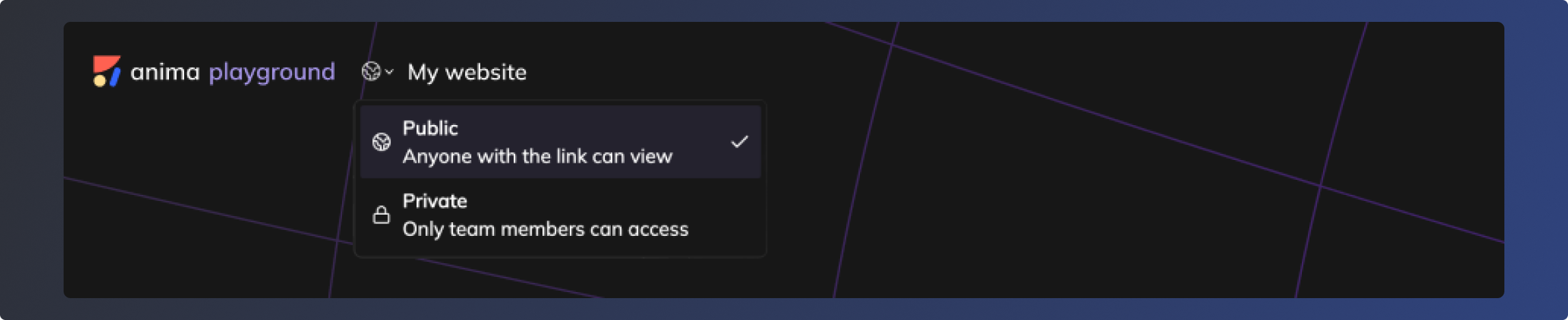
Forking playgrounds
Fork (copy) a playground to the current team or to a different team. This lets you share with collaborators while keeping your original copy.
Managing your playgrounds
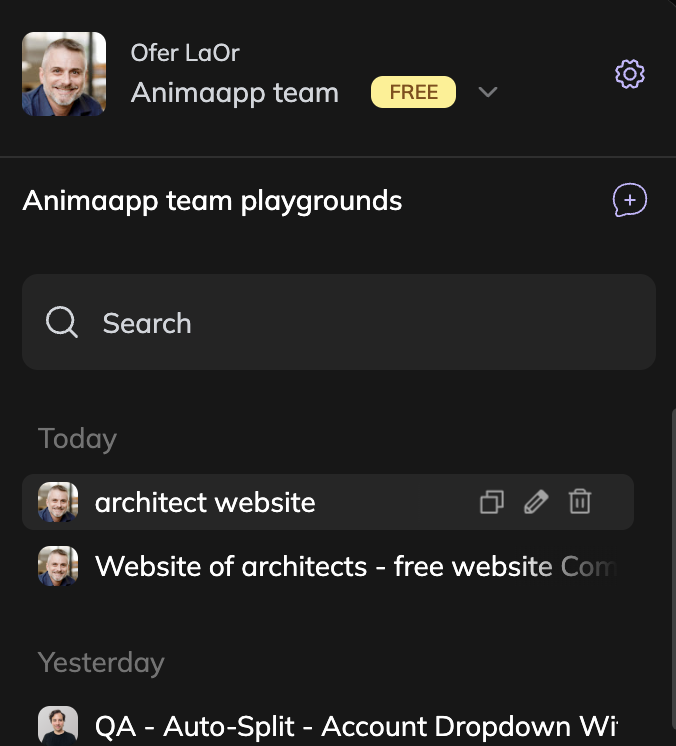
When you select a team, you'll see all playgrounds stored by that team. The avatar of the person who last saved appears next to each playground.
- Playgrounds are sorted by last updated
- Search by name from the top
- For each playground, you can delete, rename, or fork/copy it to the same or another team
- You can only make these changes if you've opened the playground at least once
Collaborating on playgrounds
Each contributor on a team has their own local copy of the playground, which can lead to potential conflicts.
When someone else saves:
- You'll see their avatar on the team sidebar and the updated "last saved" date
- The Reset menu shows an indicator that a new version is available
- Pressing Reset reverts to the last commonly saved version
When you try to save after someone else:
- You'll be asked to confirm before overwriting their changes
- If you don't confirm, you keep a local version that you can fork to the same team or another one
Updated 10 months ago
Did this page help you?