
Debug Mode
Debug Mode gives the agent computer vision and an expanded toolset to inspect, diagnose, and fix issues when a prompt doesn't land the first time.
What is Debug Mode?
By default, the agent generates code based on your prompt — but it doesn't see the rendered result. Debug Mode changes that. When activated, the agent gains the ability to view the actual output the same way you do, compare it against your original intent, identify what's wrong, and resolve it.
Use Debug Mode when:
- The agent says it completed your prompt, but the result doesn't match what you asked for.
- The agent gets stuck or returns an error.
- Something looks visually off — misaligned elements, missing components, broken layout, wrong styling.
- You've iterated on a prompt and the agent keeps producing the same incorrect result.
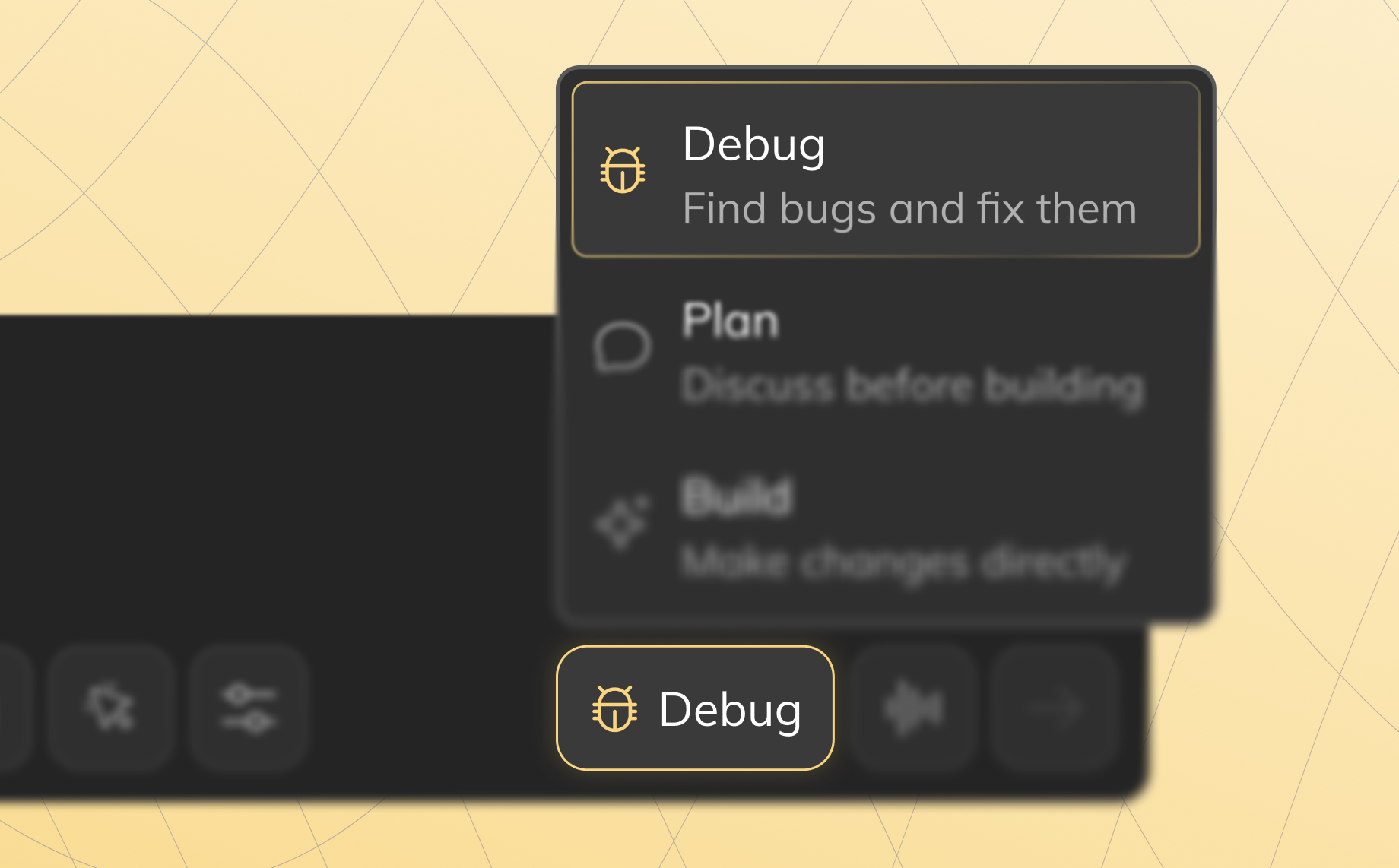
Triggering Debug Mode
There are two ways to activate Debug Mode — manually or automatically.
Manual trigger:
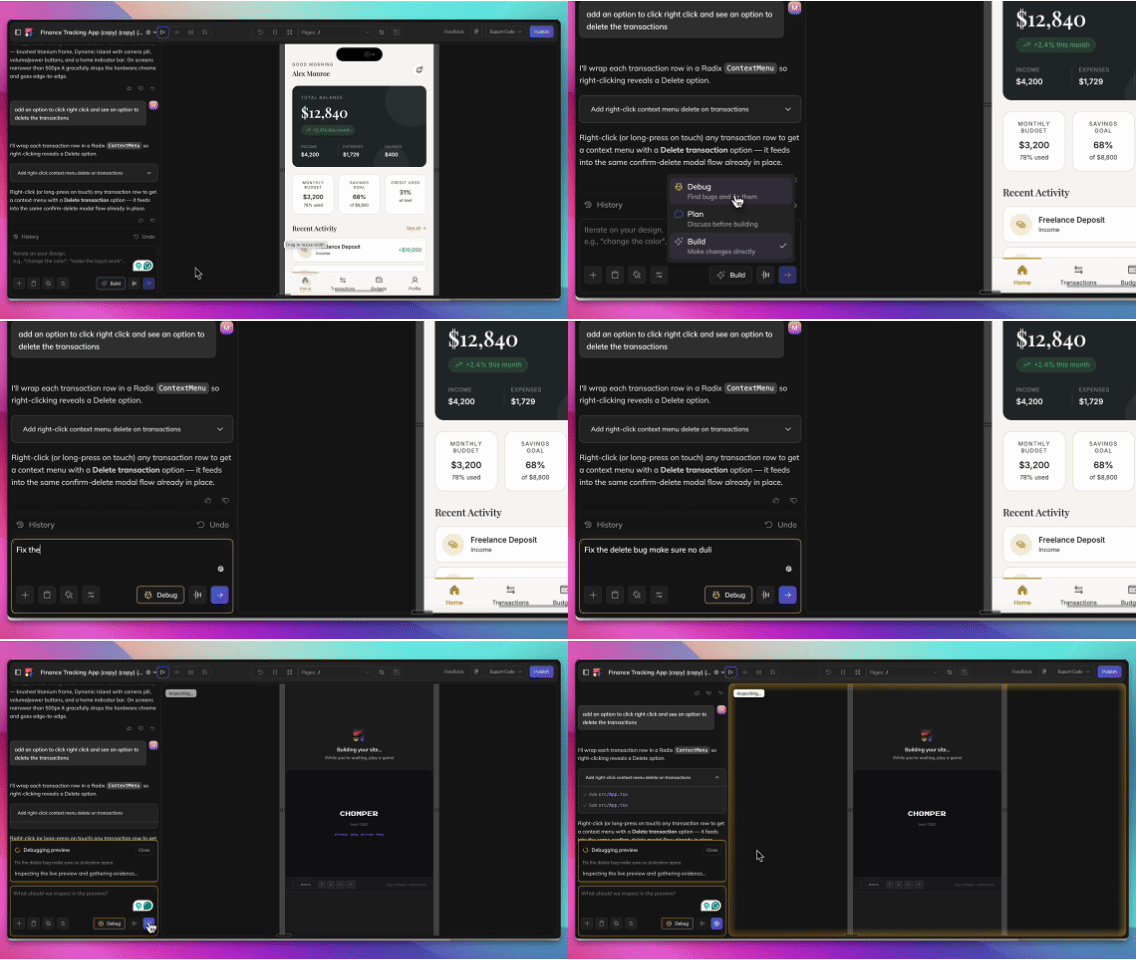
- Open your project in the Anima Playground.
- Click the Debug button in the chat input toolbar (the bug icon)
- Describe the problem — paste the error message or describe what's broken.
- Let the agent work — it will investigate your code, identify the root cause, and apply a fix
- Review the result — the agent explains what it found and what it changed
Automatic trigger:
Anima analyzes your prompts and automatically routes them to Debug Mode when it determines the issue is better handled by the debug agent. You don't need to do anything differently — just describe your problem in the regular chat as you normally would. When this happens, you'll see an indicator that Debug Mode is handling your request.
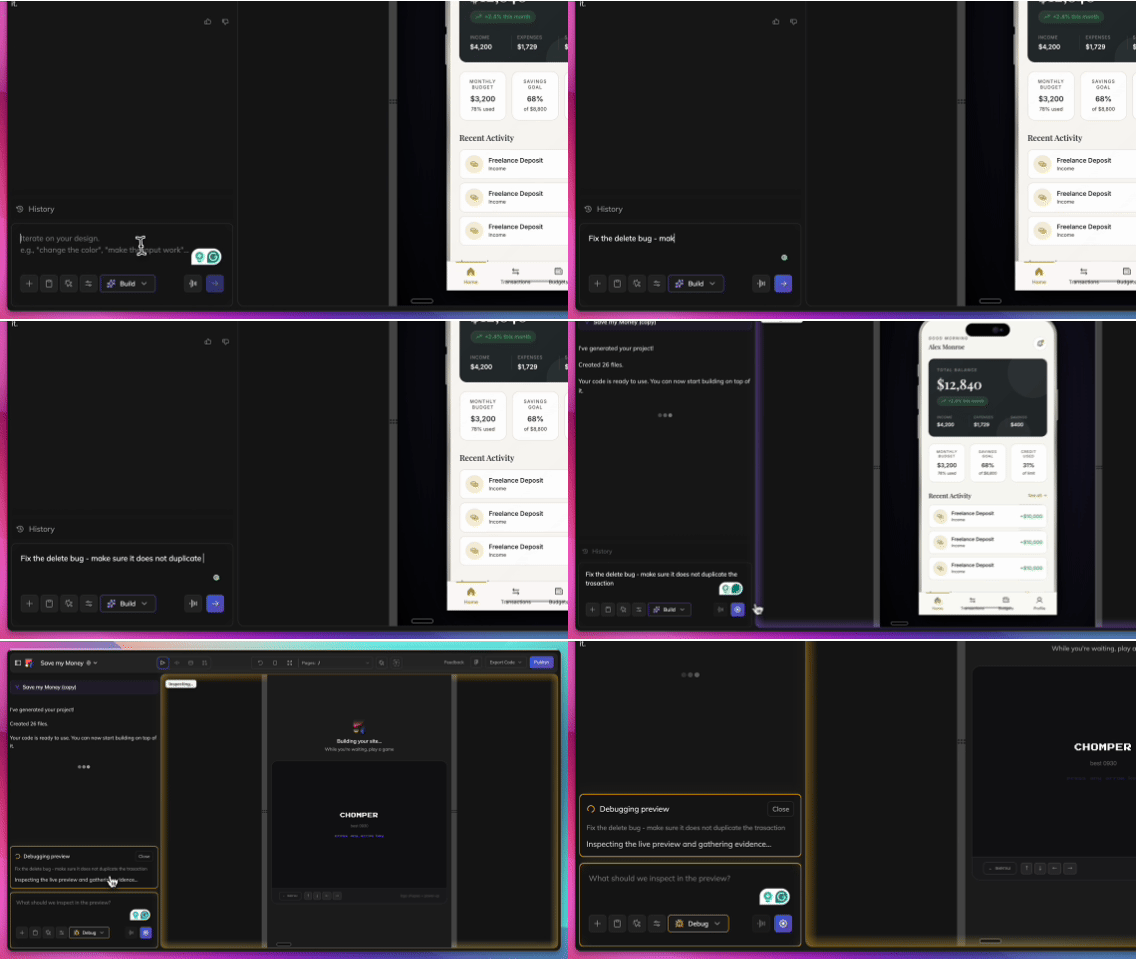
What the agent does
Once active — whether triggered manually or automatically — the debug sub-agent:
- Reads your full codebase — not just the file you're looking at T
- races the error to its source — finds where the problem originates, not just where it surfaces
- Tests the fix — verifies the change resolves the issue before presenting it
- Explains its reasoning — tells you what was wrong and why
When to trigger it manually
Trigger Debug Mode yourself when:
- You want to force the debug agent on something the regular chat handled but got wrong
- The error isn't showing in the preview, but you know something is broken
- You want the deeper investigation upfront, without waiting for the gatekeeper to decide
Tips
- Include the error message — paste it directly for faster diagnosis
- Describe when it broke — "This worked before I added the login screen" gives the agent useful context
- Check the explanation — the agent's summary tells you what changed, so you can decide whether to keep or revert the fix.
Updated 5 months ago