
Copy to Figma
Copy to Figma
Turn your Anima Playground into a Figma design. Copy to Figma converts your preview into Figma-compatible layers that you can paste directly into any Figma file.
What gets exported
- Layout structure preserved as Figma frames and auto-layout
- Text layers as editable text, not outlines
- Colors and styles mapped to Figma properties
- Images and icons included as fills
When to use it
- Hand off to designers and share your prototype in their native format
- Document your work with a design record of what you built
- Iterate visually by making quick tweaks in Figma before updating code
Availability
Copy to Figma is available on Starter and Pro plans. Users on the Free plan can upgrade to access this feature.
How it works
-
Click Figma in the top right corner
-
Wait for Anima to prepare your Figma
-
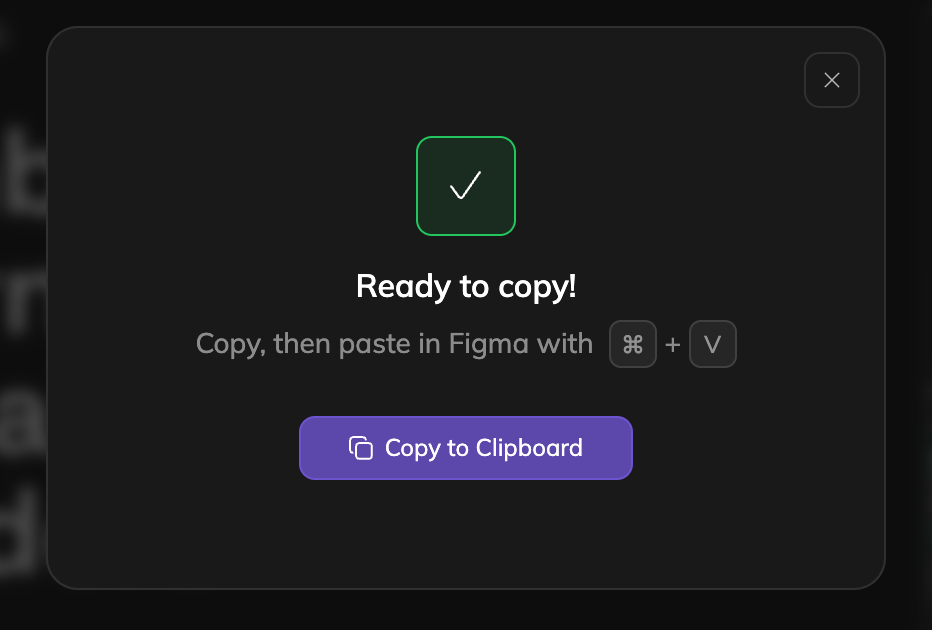
When done, the Figma content is copied to your clipboard
-
Open Figma and paste with ⌘V (Mac) or Ctrl+V (Windows)
Each export uses 1 chat credit.
Your design appears as editable Figma layers, not a flattened image. Includes auto-layout.
Updated 9 months ago
Did this page help you?