
Preview
Test your app in real-time with an interactive preview that updates as you build.
Preview toolbar
The toolbar at the top of the preview provides quick access to common actions:
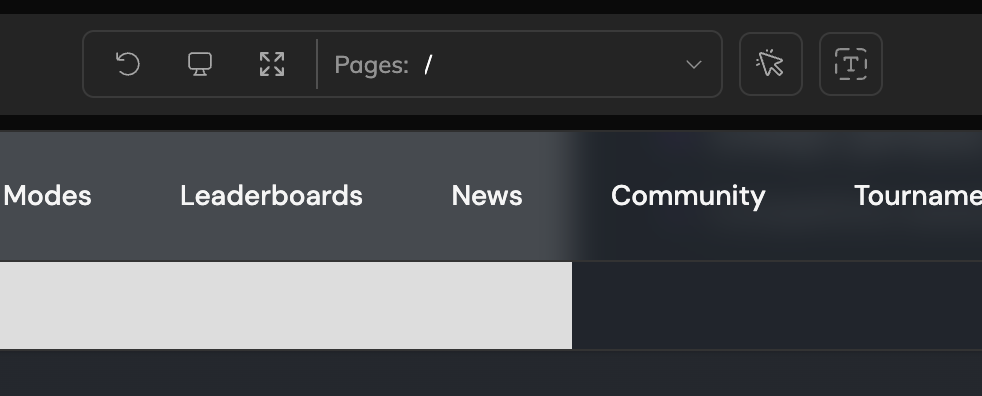
Refresh
Click the refresh icon to reload the preview. Use this if the preview gets out of sync or you want to reset the current state.
Desktop / Mobile toggle
Switch between desktop and mobile views to see how your app looks on different devices.
Fullscreen
Expand the preview to full screen for a larger view of your app.
Pages dropdown
Use the Pages dropdown to navigate between screens in your app. This shows all available routes so you can quickly jump to any page.
Element Selector
Click the cursor icon to enter element selection mode. Select any element in the preview to use it as context for your next chat prompt. Hold Shift and click to select multiple elements.
Visual text edit
Click the text icon to enter visual text edit mode. This lets you edit text content directly in the preview by clicking on any text element.
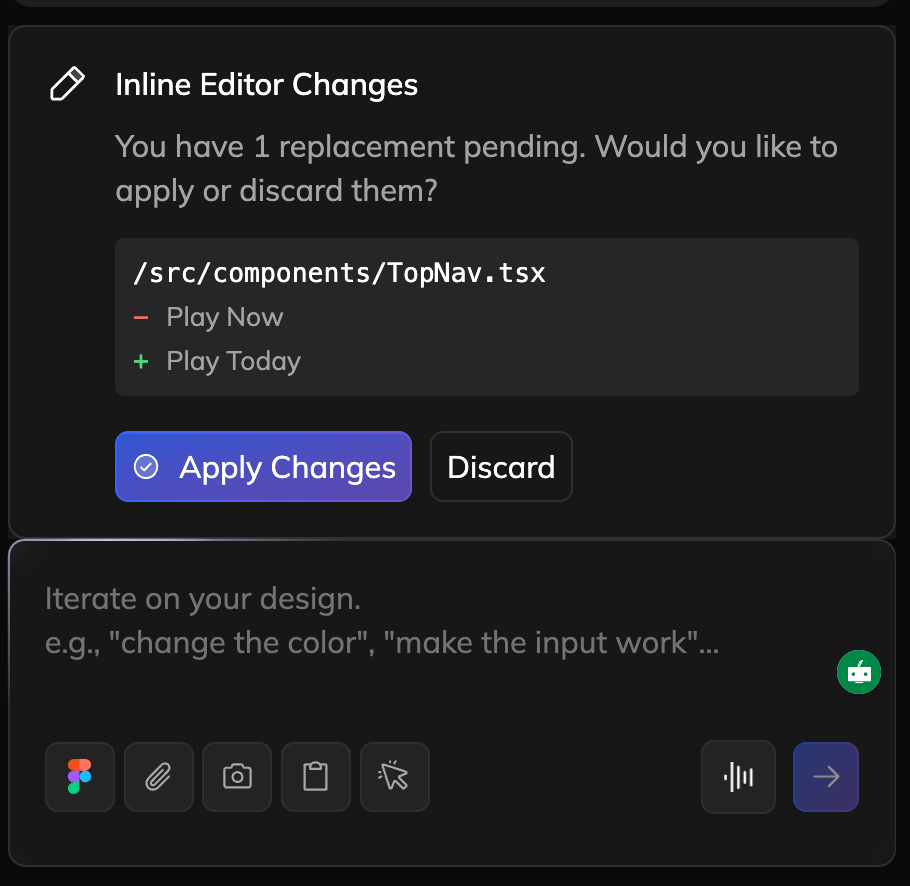
After making changes, a confirmation appears in the chat showing the file and what will change. Click Apply Changes to update the code, or Discard to cancel.
Updated 10 months ago