
Buddy – Figma AI Design Agent
Buddy is an AI-powered Figma plugin that lets you design directly on the canvas through a chat interface.
Buddy is an AI-powered Figma plugin that lets you design directly on the canvas through a chat interface. It reads your existing design system—components, variables, and tokens—and uses them when building or modifying frames, so output fits into your existing file rather than generating generic UI.
Installation
- Open Figma and go to the Community page for Buddy.
- Click Install.
- Open any Figma file, then go to Plugins → Buddy – Figma Design Agent to launch the chat panel.
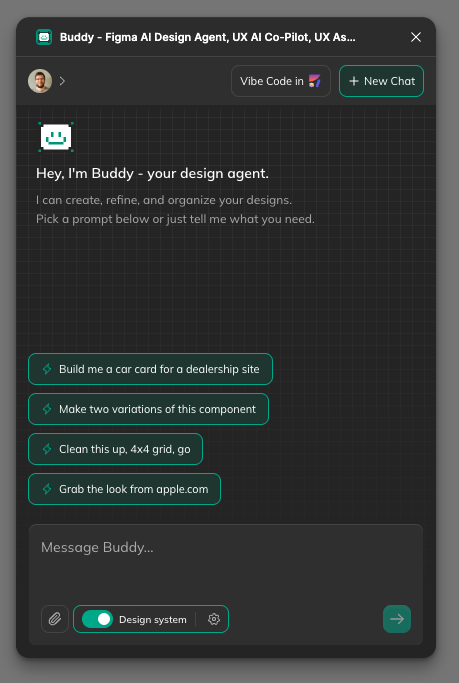
No API keys, configuration files, or external setup is required.
Connecting your design system
Before using Buddy, import your design system so the agent can reference your actual components, variables, and tokens instead of creating generic elements.
- In the Buddy panel, open Settings (or the design system import option).
- Select the libraries you want the agent to use.
- Once imported, the agent will prioritize your components when building new UI.
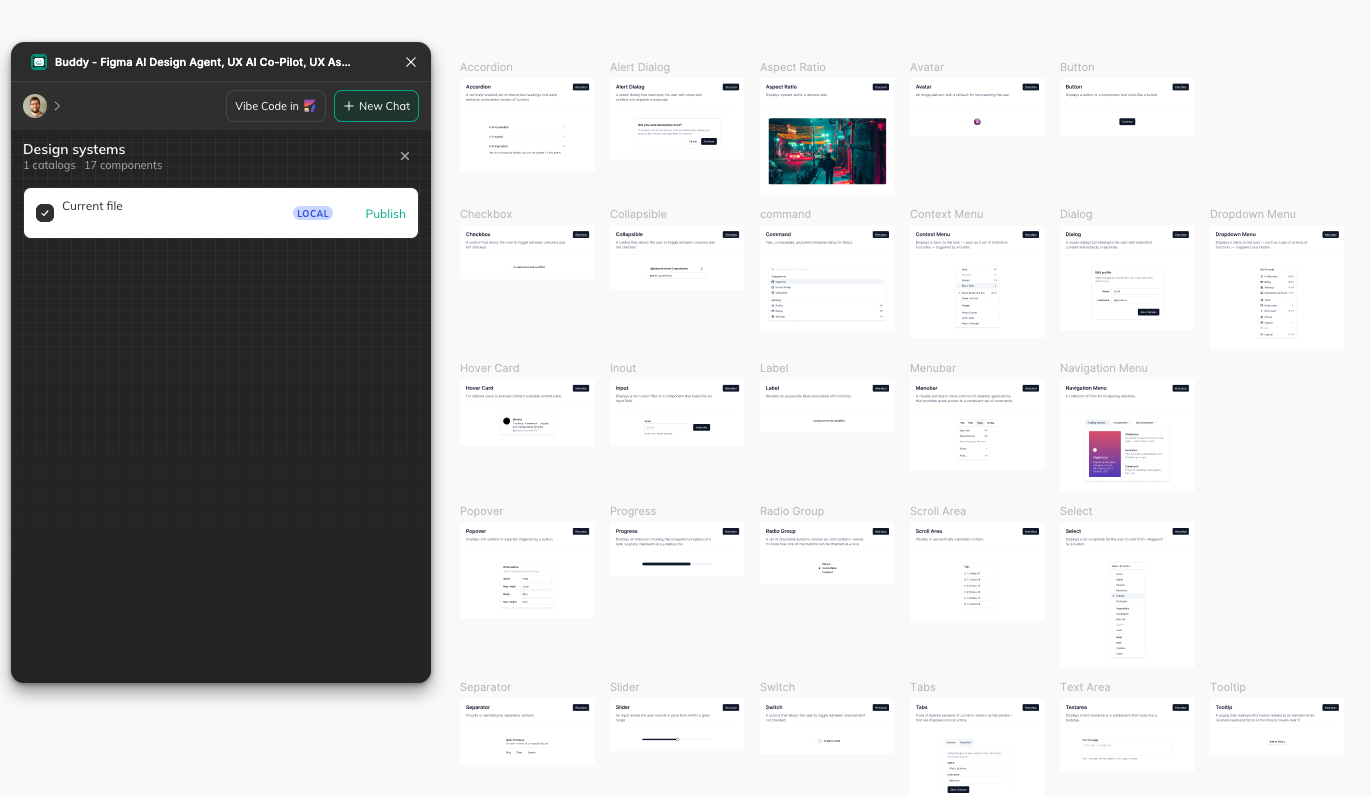
If your file already has local components and styles, Buddy picks them up automatically without any additional steps.
How it works
Buddy operates as a chat inside Figma, as a plugin. You describe what you want, and the agent takes action directly on the canvas—creating frames, placing components, applying auto layout, setting variables, and organizing layers. Each message in a conversation builds on the previous one, so you can iterate without starting over.
What you can do
➡️ Design on existing screens
Select one or more frames in your file, then describe what you want to add or change. Buddy reads the visual structure of the selected frames and builds on top of them using your existing components and spacing.
Example prompts:
- "Add a notification banner to the top of this screen using the alert component."
- "Replace the card grid with a list layout."
- "Add a loading skeleton state for this section."
➡️ Import a website and iterate on it
Paste a URL into the chat. Buddy fetches the page and brings it into your canvas as editable Figma layers. From there, you can restyle it, swap in your own components, or use it as a starting point for a new design direction.
Example prompts:
- "Import this page and restyle it using our design tokens."
- "Bring in this UI and replace the navigation with our header component."
➡️ Build or extend a design system
Buddy can generate a set of components from a reference—a screenshot, a few existing components, or a description of a visual direction. It keeps colors, typography, spacing, and variants consistent across what it creates.
If you already have a system, you can ask Buddy to extend it by adding new component variants or filling in missing states.
Example prompts:
- "Create a full button component set with all size and state variants."
- "Build a form component using our input, label, and error text styles."
- "Add a dark mode variant to our card component."
➡️ Run bulk Figma actions
Use Buddy to handle repetitive tasks that don't require creative decisions. These are standard Figma operations described in plain language.
Example prompts:
- "Apply auto layout to all frames on this page."
- "Rename all layers that start with 'Frame' to match their content."
- "Group all frames by their flow and label each group."
- "Align all cards to a 4-column grid."
Choosing an AI model
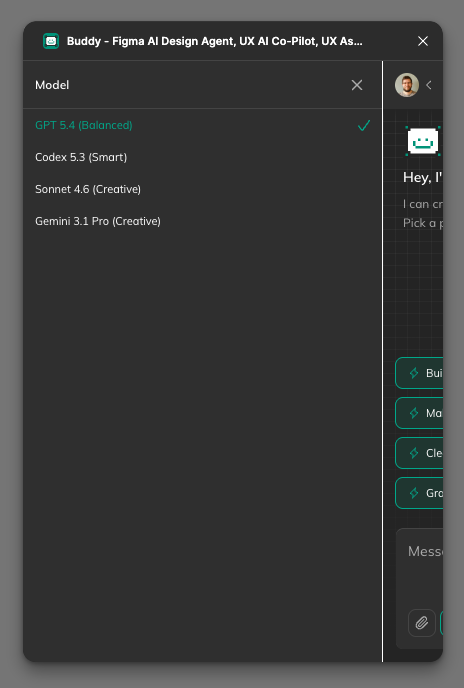
Buddy supports multiple AI models. You can switch between them from the settings or model selector in the chat panel depending on your preference or task.
Tips
- Select first - prompt later Remember to select in the design the frame/layer you're referring to before prompting, this gives much more consistent results.
- Be specific about scope. Referencing a selected frame ("update this screen") gives better results than a vague prompt.
- Use component names. If you know the exact component name in your library, mention it in the prompt to make sure Buddy uses the right one.
- Iterate in the same conversation. Instead of starting a new chat, follow up in the same thread—Buddy retains context across messages.
- Undo is your safety net. Buddy's actions go through the standard Figma undo stack (
Cmd+Z/Ctrl+Z), so any change can be reversed.
Updated 6 months ago